Sealing a folder until a chosen date
Why
A time capsule seals a chosen folder until a moment you specify, for example documents for the family “to be opened in 2036”. The capsule lies in your backup, not on a server. After that moment, the sigelith.org/capsule/ page opens it.
How it works and what it does not guarantee
Any two of three parts open the capsule:
- the round of the public drand network from the chosen moment. Its key comes into being only at that moment;
- the share of the Sigelith key server, released only after that moment. This is the operator's rule, not cryptography;
- the recovery code, saved next to the capsule.
So whoever has your backup also has the recovery code. To open the capsule earlier, it is enough for them that the Sigelith operator breaks its rule. After the chosen moment, anyone who has the capsule's files can open it. Any two parts are enough then, so one operator disappearing does not lock the capsule forever.
Before you start
- The capsule is created in the chosen backup folder, in the “Sigelith Capsules” folder. It has to survive until the opening date: keep it on a drive that will last that long, or also copy it somewhere else.
- Sealing does not go online.
Step by step
- In the menu on the left, click “Restore” and, in the “Where we restore from” box, choose the backup folder the capsule should lie in.
- At the bottom of the page click “Time capsules…”, and then “New capsule…”.
- Choose the folder to seal.
- In the “New time capsule” window, enter a name, and in the “Opens no earlier than” field set the date and time: 10 years from now by default, at the earliest one hour from now. Click “OK”.
- Sealing takes a few seconds. Then the program shows the recovery code: it is also on the clipboard and in a file next to the capsule. Store it somewhere safe.
What you should see
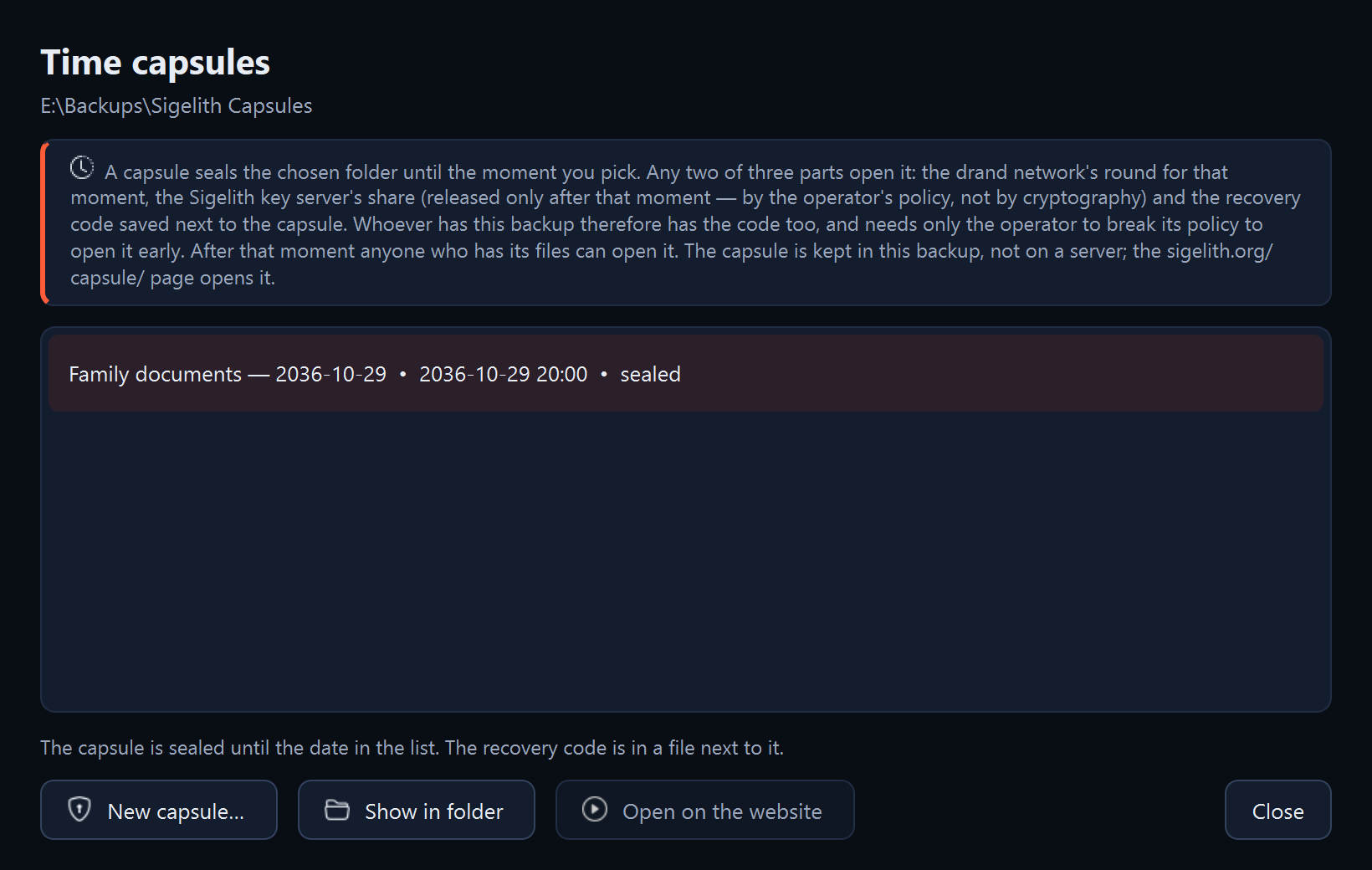
- The capsule in the list: its name, opening date and status “sealed”.
- In the backup folder, in “Sigelith Capsules”, the capsule's folder with its files and the “KOD ODZYSKIWANIA - RECOVERY CODE.txt” file. “Show in folder” opens it in Windows Explorer.
Opening a capsule
After the opening date, the status changes to “can be opened”. Select the capsule and click “Open on the website”. The sigelith.org/capsule/ page asks for the capsule's files.
If something goes wrong
- “Open on the website” is inactive: the opening date has not passed yet.
- “Could not seal: …”: the message gives the reason, for example a folder that cannot be read.
- After the opening date the Sigelith key server is not working: the drand round and the recovery code are enough.