
Sigelith Courier — proof of handover confirmed by the recipient
Proof of handover confirmed by the recipient’s key and completed by a public stamp. At the door the recipient confirms on their own phone — not with a squiggle on a stranger’s screen — and the moment is recorded in the public Sigelith log.
Android 11 or newer, with NFC, Bluetooth LE and a camera; a screen lock for the courier key. Interface in 11 languages.
 Sigelith Delivery
How a handover is confirmed
- The shop prints a code Its plugin puts a signed code on the packing slip and a link in the shipping e-mail. The code carries no name and no address.
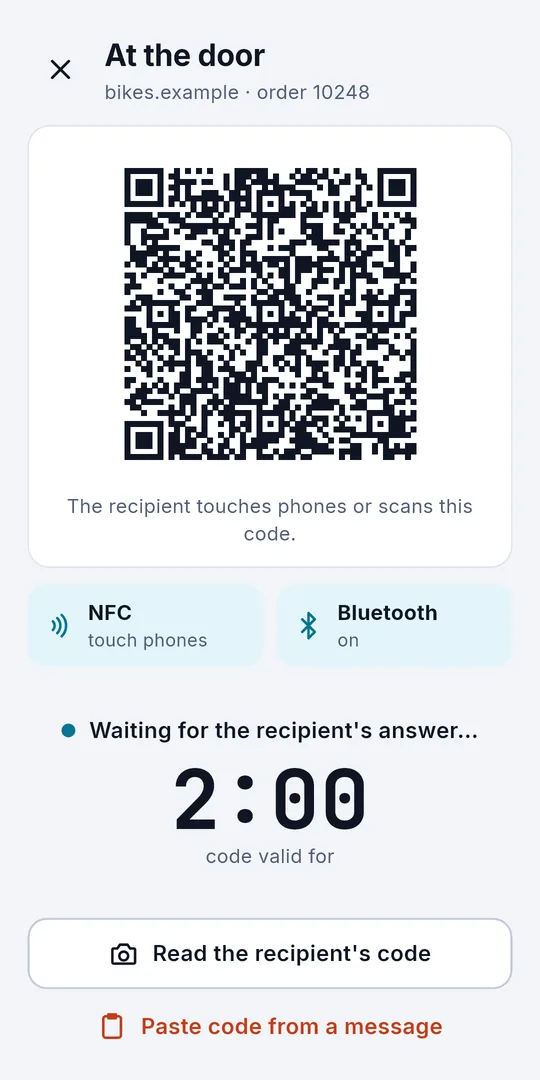
- The courier scans it at the door Sigelith Courier checks the shop’s signature and opens a short session, passed to the recipient by NFC (phones held together), Bluetooth or a QR code.
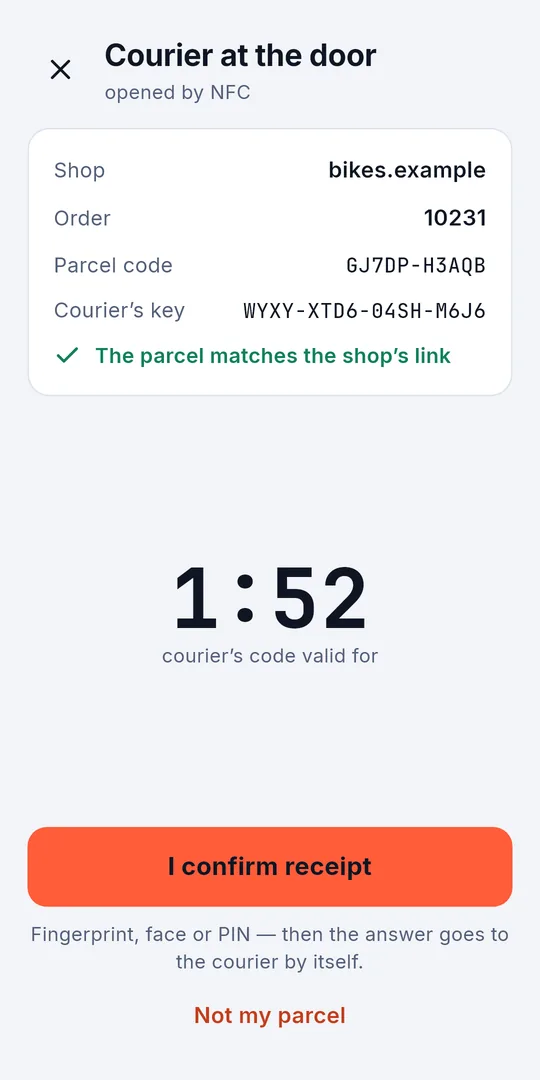
- The recipient confirms On their own phone, with the link from the shop and a fingerprint, face or screen lock. The courier’s code is valid for two minutes; when it runs out, the courier simply shows a new one.
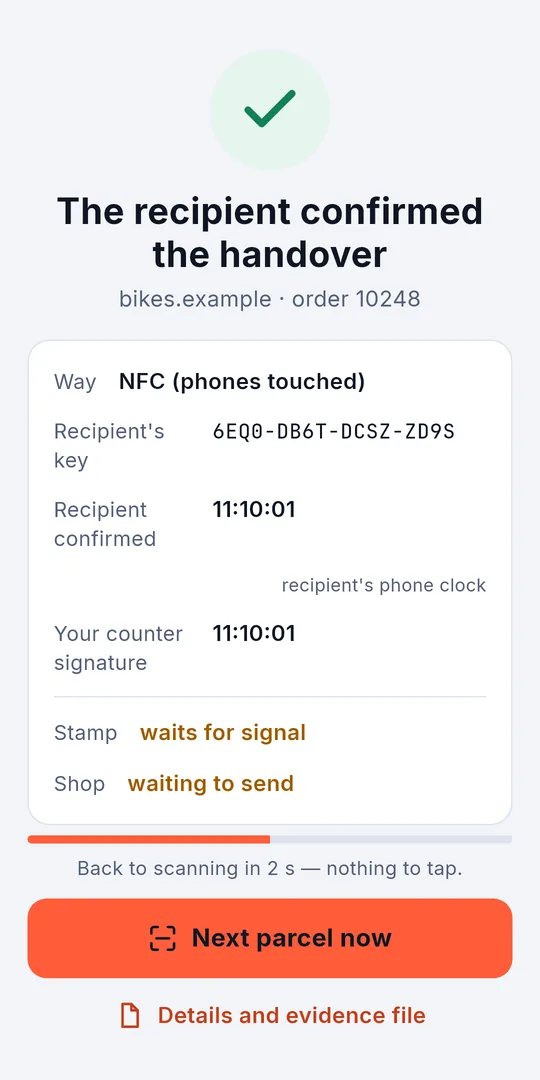
- Both are stamped The courier’s app countersigns, stamps the confirmation and its own record in the public log — only hashes, queued while offline — and sends the evidence to the shop.
With a pickup code
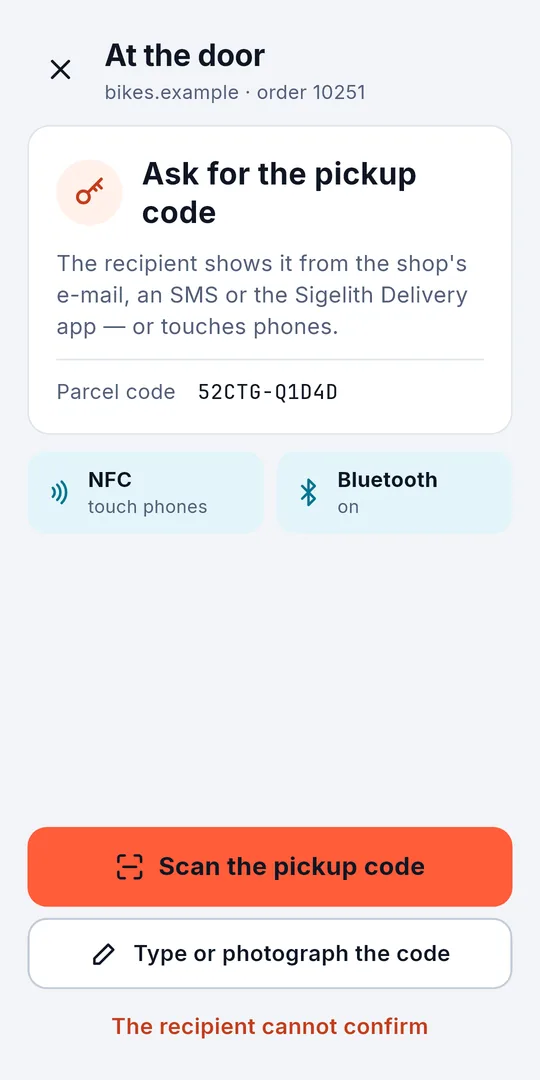
Shops can choose a pickup code instead of the recipient’s signature. The shop e-mails the buyer a code; at the door the courier scans it from the recipient’s screen or a printout, types it or takes a photo of it — or receives it from the recipient’s app over NFC or Bluetooth. Sigelith Courier checks the code against the label, signs the record and stamps it. The recipient needs no app and no passkey — only the e-mail.
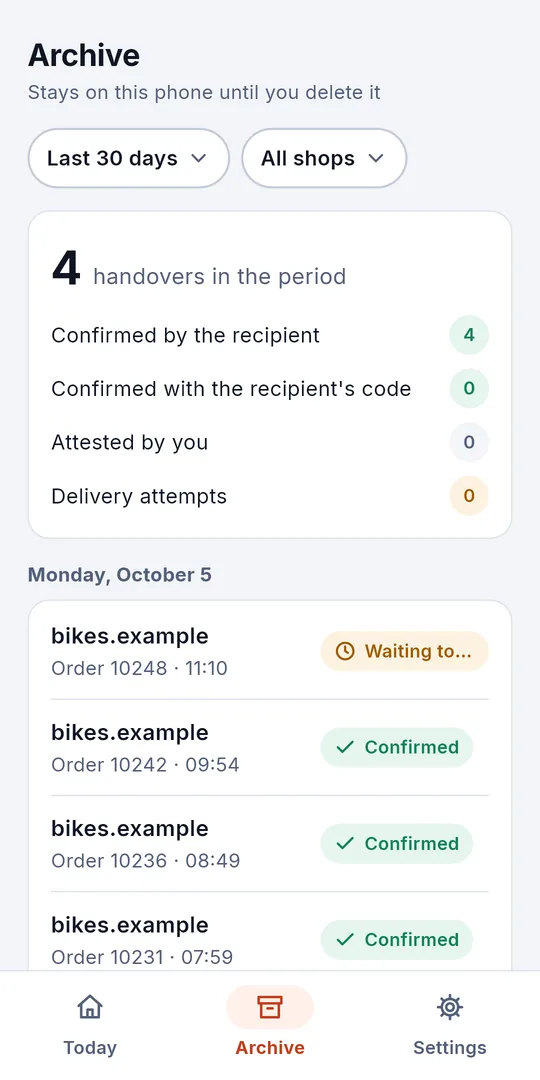
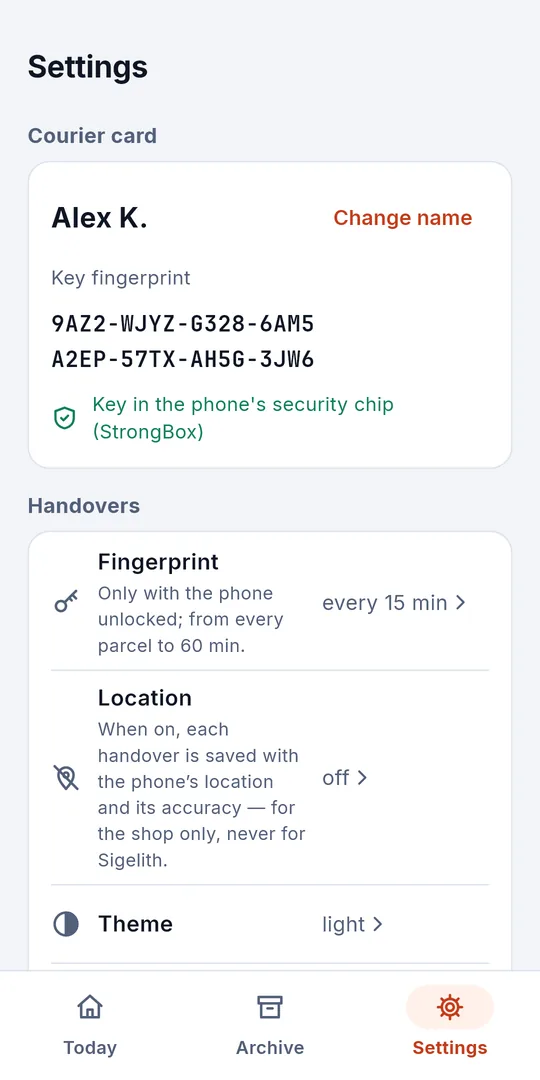
Screenshots
When the recipient does not confirm
The courier still records what happened — labelled honestly as the courier’s own statement, never as the recipient’s confirmation.
Handed over without confirmation
Left with a neighbour or another person, or handed to a recipient who has no phone, no link or no internet at hand, or who does not want to confirm on a phone.
Not handed over
A delivery attempt: nobody home, the parcel refused, or a wrong address.
A photo only if the courier wants one
A photo, or a signature on the courier’s screen, can be added — always optional, never a duty. Before a record is signed and stamped, the courier has a few seconds to undo it.
What the proof shows — and what it does not
It shows
- that the shop issued the code for this parcel;
- that whoever held the link from the shop confirmed it — after the courier’s session started, over the channel the evidence names (NFC, Bluetooth or QR);
- that the confirmation and the courier’s record existed no later than their public stamps;
- with a pickup code: that the courier’s phone held the code the shop sent only to the buyer, no later than the stamp;
- that the courier’s key countersigned the confirmation.
It does not show
- who the person was — only control of the link and of a phone;
- what was in the parcel or what state it was in;
- where it happened — a location in a record is the courier’s claim;
- with a pickup code: that the recipient was at the door — a code can be photographed or passed on;
- legal delivery under any law.
For couriers — Sigelith Courier
- Scans the code on the parcel and checks the shop’s signature.
- NFC: the phone acts as a tag the recipient’s phone reads, and on Android the answer comes back the same way.
- Bluetooth and QR codes when NFC is not possible.
- Pickup code: reads the recipient’s QR code or the characters on a screen or paper, takes the code typed, or receives it from the recipient’s app over NFC and Bluetooth.
- The courier’s key stays in the phone’s secure key store; a fingerprint unlocks it for every parcel or for 5 to 60 minutes.
- Works without internet: stamps wait in a queue and go out when the phone is back online.
- Keeps every record and exports a period as one file for the employer or a shop.
- 11 languages, light and dark theme.
For recipients — nothing to install
Recipients install nothing: the confirmation page, Sigelith Delivery, works in the browser on iPhone and Android.
- The confirmation page opens the link from the shop’s e-mail and remembers the parcel on the phone for 30 days.
- Android: hold the phone to the courier’s phone — NFC both ways — or use Bluetooth or a QR code.
- iPhone: the courier’s phone opens the page by NFC, and the answer goes back as a QR code the courier scans.
- Afterwards you can keep a PDF confirmation and an evidence file; the QR code on the PDF leads to the stamp in the public log.
- With a pickup code: show the code from the shop’s e-mail — on a screen or printed — or from the Sigelith Delivery app.
- Sigelith Delivery is also an Android app for recipients — never required.
For shops and carriers
Shop plugins are being prepared, WooCommerce first. A plugin prints the codes, puts the link in the shipping e-mail, receives and checks the evidence, and marks the order “handed over — confirmed by the recipient”. It works with any carrier, because the code travels on the parcel. Carriers can build the protocol into their own apps.
Formats
The formats are open. The specification and a protocol library under the Apache 2.0 licence will be published for shops and carriers.
sigelith-delivery-v1the protocol: code, session, confirmation and record, each signedSIGELITH-S1:…the courier’s session code, as a QR code or textSIGELITH-C1:…the recipient’s confirmation codeSIGELITH-P1:…the recipient’s pickup code with the parcel code, as a QR code.sigelith-deliverythe evidence file of one delivery.sigelith-archivea courier’s export of a period: a ZIP file with a signed list
How to use it
Courier
- Install Sigelith Courier and tap “Create key”; the app asks for your fingerprint or screen lock.
- In Settings → Fingerprint, choose how often the app asks for it: every parcel, or every 5, 15, 30 or 60 minutes.
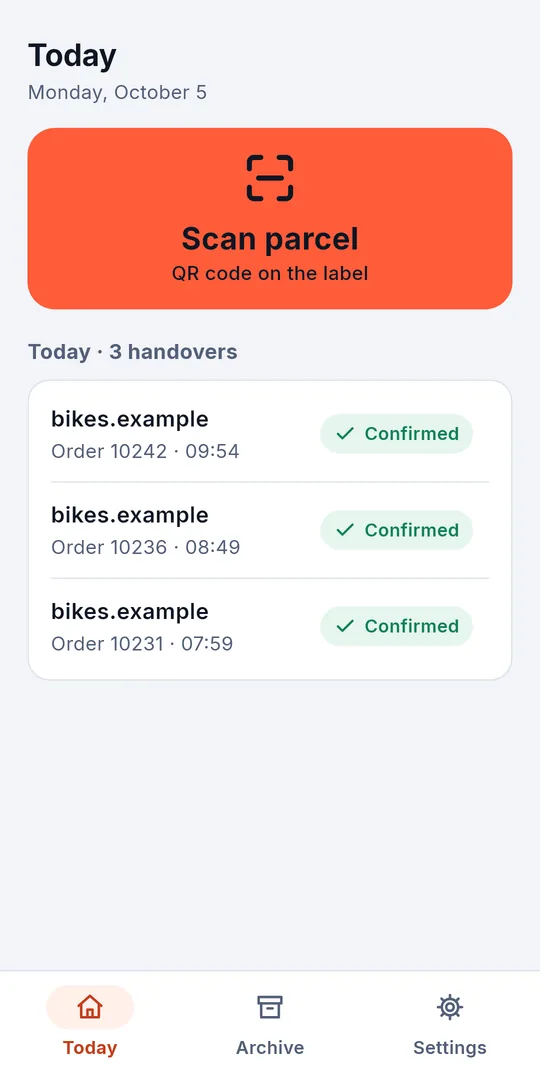
- At the door, tap “Scan parcel” and scan the code on the parcel.
- Pass the session by NFC (hold the phones together), Bluetooth or QR, and wait for the answer — a countdown shows the time left.
- With a pickup code, the app asks for the code instead: scan the recipient’s QR code, type the 12 characters or take a photo of them — or let the recipient hold the phones together.
- When the answer arrives, the app checks it, signs the record and stamps it. Done.
- No confirmation? Open “Without confirmation”, choose “Parcel handed over” or “Parcel not handed over”, pick the reason, add a photo if you want, and save.
- Without internet, stamps wait in the queue; in the Archive you can export a period to one file.
Recipient
- Open the link from the shop’s shipping e-mail on your phone, in the browser you will use at the door. On iPhone open it in Safari, not inside the mail app.
- At the door, hold your phone to the courier’s phone, or scan the courier’s QR code.
- Check that it is your parcel and confirm with your fingerprint, face or screen lock.
- On iPhone, show the courier the QR code that appears; on Android the answer goes back by itself.
- Keep the PDF or the evidence file if you like.
- With a pickup code: when the courier comes, show the code from the shop’s e-mail or from the app — or hold the phones together in the app.
System requirements
Android 11 or newer, with NFC, Bluetooth LE and a camera; a screen lock for the courier key. Interface in 11 languages.
Privacy
Only proofs pass through Sigelith: its servers receive 32-byte hashes to stamp — never names, addresses, codes, confirmations, records or photos. The link from the shop travels in the part of the address that browsers never send to a server. The courier’s location is optional and off by default; photos and the location go only to the shop.
Sigelith Delivery — for recipients.
Hold your phone to the courier’s and confirm with your fingerprint. The shop gets a confirmation signed with your own key, and its fingerprint is stamped in the public Sigelith log.
Sigelith Courier is free. No account, no ads.