Finishing an interrupted backup
Why
The first backup of large folders can take many hours. When it is interrupted (the “Stop” button, the computer shutting down, the drive being disconnected), you do not have to start from scratch: the program adds to the same version only what is missing from it.
Before you start
- The files written before the interruption are complete and recorded in the backup's table of contents.
- Finishing applies to the “Dated versions (recommended)” layout. A mirror copy completes itself the next time it runs.
Step by step
Usually the program asks by itself
- Start the backup as usual: from the form or from a template.
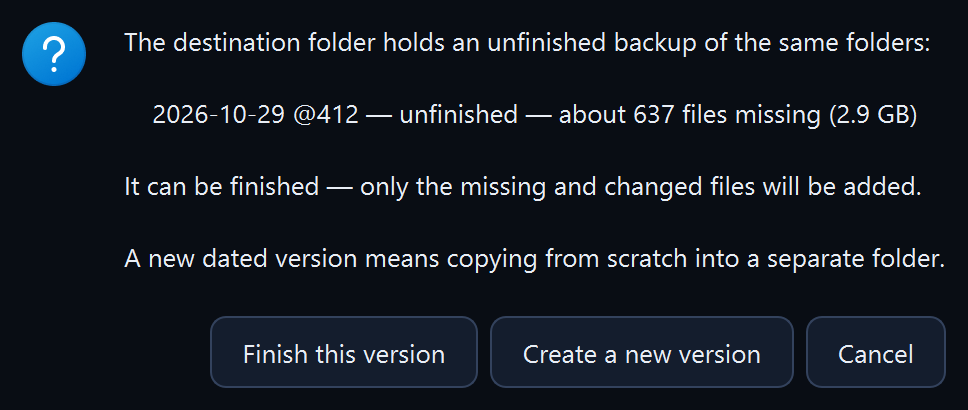
- If the newest version of the same folders is unfinished, the “A backup to finish” window appears. Click “Finish this version”.
- “Create a new version” starts the backup from scratch in a separate folder with a new date.
- “Cancel” does not start the backup.
A chosen version, manually
- On the “Backup” page, in the “Backup layout” box, in the “Write to:” field, choose the version (“Finish: …”).
- Click “Run backup”.
This also lets you top up a finished version: the program adds to it the files that appeared or changed during the backup.
What you should see
“Preview changes” shows how many files already written the program will skip. With “Add the date of the last top-up to the folder name” ticked, the version folder gets a second date, for example 2026-09-17_@687--2026-09-24_@921: the date it was created and the date of the last top-up. The creation date stays at the front, so the versions still sort in order.
What next
- A scheduled backup finishes an unfinished version by itself, without asking.
- Below the “Where we write” field, the program shows how many versions are waiting to be finished (“To finish: … unfinished backup(s)”).
If something goes wrong
- “Version … has a Sigelith seal.”: the version is timestamped. Topping it up without timestamping would replace files in it, and the seal would no longer match the content. Tick “Timestamp the version with Sigelith” (the seal is then made again) or make a new version.
- “The password given does not match the files already written in this backup.”: enter the password used for the interrupted backup (see “Encrypting a backup”).
- The drive ran out of space: see “Not enough space on the backup drive”.