Setting up an off-site backup
Why
A backup drive next to the computer will not survive a fire, a flood or a burglary. An off-site backup is a second, encrypted backup in an S3-compatible online storage service, such as Backblaze B2. The files are encrypted on your computer with a separate password, so the service sees only unreadable pieces.
Before you start
- Create an account with an S3-compatible service (Backblaze B2, Amazon S3, Wasabi, MinIO and others) and create a bucket and an access key there: a key ID and a secret key. The service usually charges for the data stored.
- You need a backup template (see “Saving settings as a template”).
- Think of an encryption password for the off-site backup, at least 10 characters, different from the password of the backup on the drive.
- Write down the service details, the secret key and the encryption password away from the computer. The program keeps them in Windows Credential Manager, and after a computer failure you will need them to recover files on another computer. Without the off-site backup's encryption password, nobody can read it.
Step by step
- In the menu on the left, click “Templates”, select the template and click “Off-site backup…”.
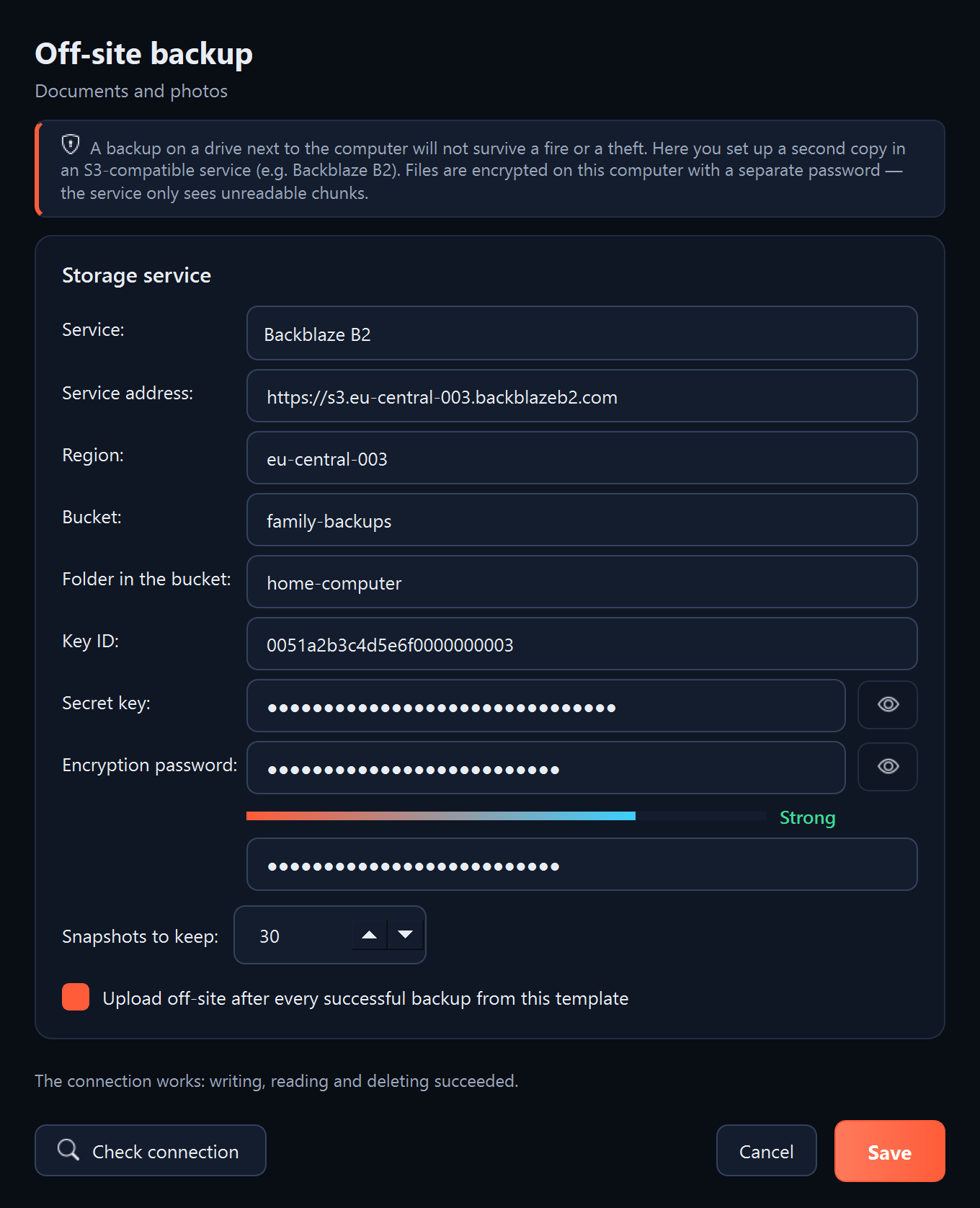
- In the “Service:” field, choose the service. The program fills in the service address and region; for another service, take them from its instructions.
- Enter “Bucket:”, “Key ID:” and “Secret key:”. In the “Folder in the bucket:” field you can enter a name, for example home-computer, when several computers use one bucket.
- In the “Encryption password:” field, enter the password and repeat it below.
- In the “Snapshots to keep:” field, set how many snapshots to keep (30 by default). A snapshot is the state of the files from one upload.
- Leave “Upload off-site after every successful backup from this template” ticked.
- Click “Check connection”. The program writes, reads and deletes a small test file in the service.
- Click “Save”. The secret key and the password go into Windows Credential Manager.
What you should see
- After “Check connection”: “The connection works: writing, reading and deleting succeeded.”
- After every successful backup from this template, including scheduled ones, the program uploads a snapshot. The first upload takes the longest, and later ones upload only new and changed files.
- You see the uploads in the “Recent operations” list on the “Templates” page as “Off-site”.
What next
- You recover files with the “From the off-site backup…” button on the “Restore” page (see “Restoring from the off-site backup”).
- The program deletes surplus older snapshots every few days, once there are a few more than the number you set.
- When the backup protects Sigelith evidence, the evidence store also goes off-site.
If something goes wrong
- “The connection does not work: …”: check the service address, region, bucket name and keys. In the service, the key must have permission to write, read and delete files in this bucket.
- “The off-site backup password should be at least 10 characters long.” or “The two passwords do not match.”: correct the password.
- The notification “The off-site backup did not start”: the key or password is missing from Windows Credential Manager, for example after the remembered passwords were deleted. Open “Off-site backup…” and save the settings again.