Restoring from the off-site backup
Why
When the backup on the drive is gone, for example destroyed in a fire or stolen together with the computer, and you have an off-site backup in an S3-compatible service (see “Setting up an off-site backup”). It also works on a new computer.
Before you start
- You need the service details: the service address, region, bucket, folder in the bucket, key ID and secret key. On the computer that made the backup, they are saved in the template; on a new computer you have to enter them.
- You need the off-site backup password. It is a different password from the password of the backup on the drive.
Step by step
- In the menu on the left, click “Restore”, and at the bottom of the page “From the off-site backup…”.
- In the “From” box, choose a template with an off-site backup set up, or “I will enter the details myself”, and enter the service details and the password.
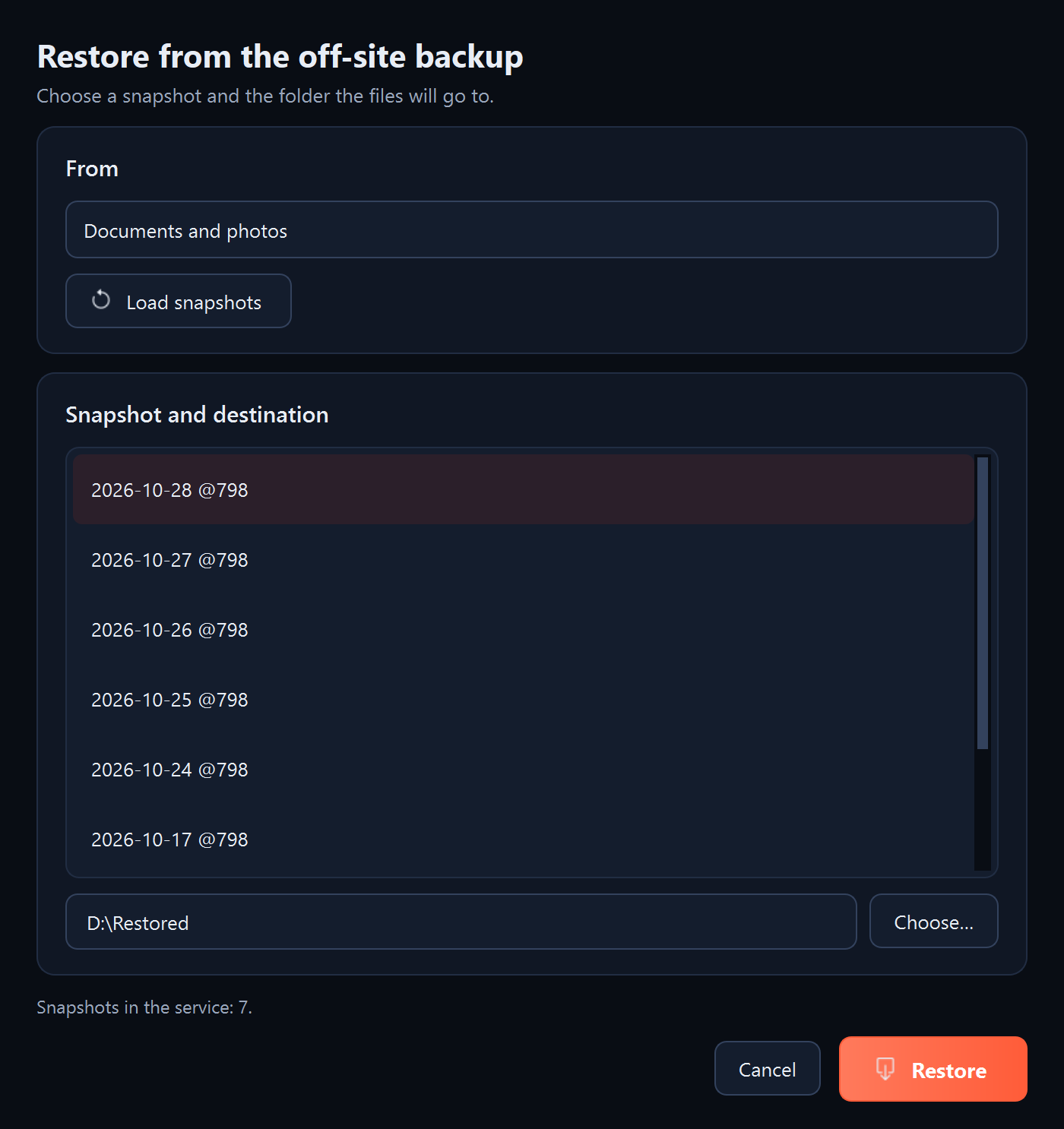
- Click “Load snapshots”. The program downloads the list of snapshots, that is, the states of the backup from successive uploads.
- In the “Snapshot and destination” box, choose a snapshot, usually the newest, and choose the folder the files will go to.
- Click “Restore”. The program downloads and decrypts the files of the chosen snapshot.
What you should see
First “Snapshots in the service:” with their number, and after the restore, the files in the chosen folder.
What next
On a new computer, set up your backups again, including the off-site backup (see “Setting up an off-site backup”).
If something goes wrong
- “Could not load the snapshots”: check the service details and the internet connection.
- “There is no off-site backup at this location yet”: the bucket or the folder in the bucket is different from the one used when uploading the backup. Check both fields.
- “Load the snapshots and choose one from the list”: first click “Load snapshots”, then choose a snapshot.
- The password does not match: enter the off-site backup password, not the password of the backup on the drive.