E. Recovering files from discs and caring for discs
Restoring files from a disc
Why
When you need files from an archive disc: one, a few or all of them. It also works with a set of several discs and with an encrypted disc.
Before you start
- Insert the disc in the drive. A disc copied to a drive (its whole folder) can be restored too.
- An encrypted disc: have the disc card with the password ready.
- A set of discs: have all the discs of the set ready. A file larger than a disc lies in parts on several discs, and the program asks for each of them.
Step by step
- In the menu on the left, click “Restore”, and at the bottom of the page “Archive discs…”.
- Click “Restore from disc…”. In the “Disc:” box, choose the disc from the drive and click “OK”. You choose a disc copied to a drive with the “Another folder (a copy of the disc on a drive)…” entry.
- If the disc is encrypted, the program asks for the disc password. Enter it exactly as on the disc card, including the hyphens.
- In the “Restore from disc” window you see the files on the disc. Tick the files to restore. The “Select all” and “Clear all” buttons tick or clear the whole list.
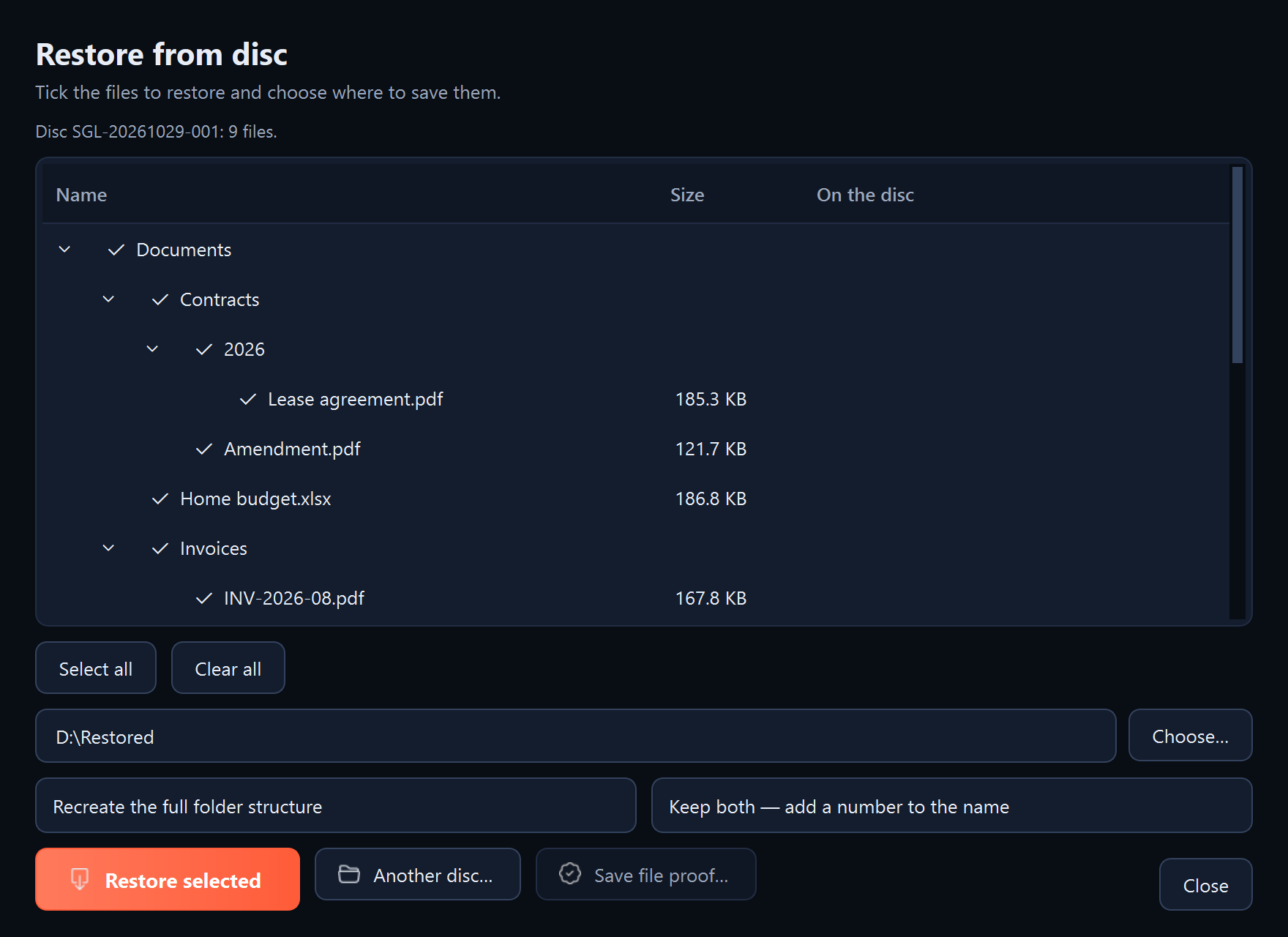
- In the destination folder field, click “Choose…” and choose the folder the files will go to. A new, empty folder is safest.
- Choose the file layout (“Recreate the full folder structure” or “Everything into one folder”) and what to do with files that already exist (“Keep both”, “Skip existing files” or “Overwrite existing files”).
- Click “Restore selected”.
- A set of discs: if the program asks for the next disc (“Split files are waiting for disc 2 of 3 of the set…”), insert it and click “Load the next disc…”. The program also suggests where that disc is kept, if this was recorded. Repeat until all the parts have been restored.
What you should see
The summary “Done:” with the number of files restored, and “Location:” with the path to the folder with the files. The program writes a file only when its checksum matches the one recorded on the disc.
What next
- “Another disc…” opens the next disc in the same window.
- “Save file proof…” saves a time proof for the selected file from the disc's seal. Sigelith Desktop and the sigelith.org/verify/ page can check it (see “Creating a time proof for a single file”).
- “Check the set…” reads the parts of files split across the discs of a set and checks that they join into whole files.
If something goes wrong
- “This is not a Sigelith Backup archive disc”: there is another disc in the drive, or the wrong folder was chosen.
- The disc password does not match: enter it again exactly as on the disc card, including the hyphens. See also “I don't remember the backup or disc password”.
- “Tick the files to restore” or “Point to the destination folder”: no files are ticked or no destination folder is chosen.
- Some files were not restored: the disc may be damaged. Check it (see “Checking a disc”), and repair damaged files with the recovery data on the disc (see “Reading a disc without the program”).
- You do not have the program to hand: see “Reading a disc without the program”.