Timestamping backup versions with Sigelith
Why
A Sigelith timestamp confirms that a backup version, in exactly this shape, already existed at the moment it was timestamped. This helps when you need to show that a document, a project or a photo existed on a given day. It also protects against files in the backup being replaced without anyone noticing (see “Checking that nobody has tampered with files in the backup”).
Before you start
- Timestamping needs an internet connection. Only the SHA-256 hash of the version's seal goes to sigelith.org: 64 characters from which neither the names nor the content of files can be reconstructed. The hash goes into the Sigelith public log.
- Without an internet connection the backup is still made, and the timestamp waits to be sent.
Step by step
- On the “Backup” page, in the “Data protection” box, tick “Timestamp the version with Sigelith”.
- Run the backup. Save the template so that scheduled backups are timestamped too (see “Saving settings as a template”).
What you should see
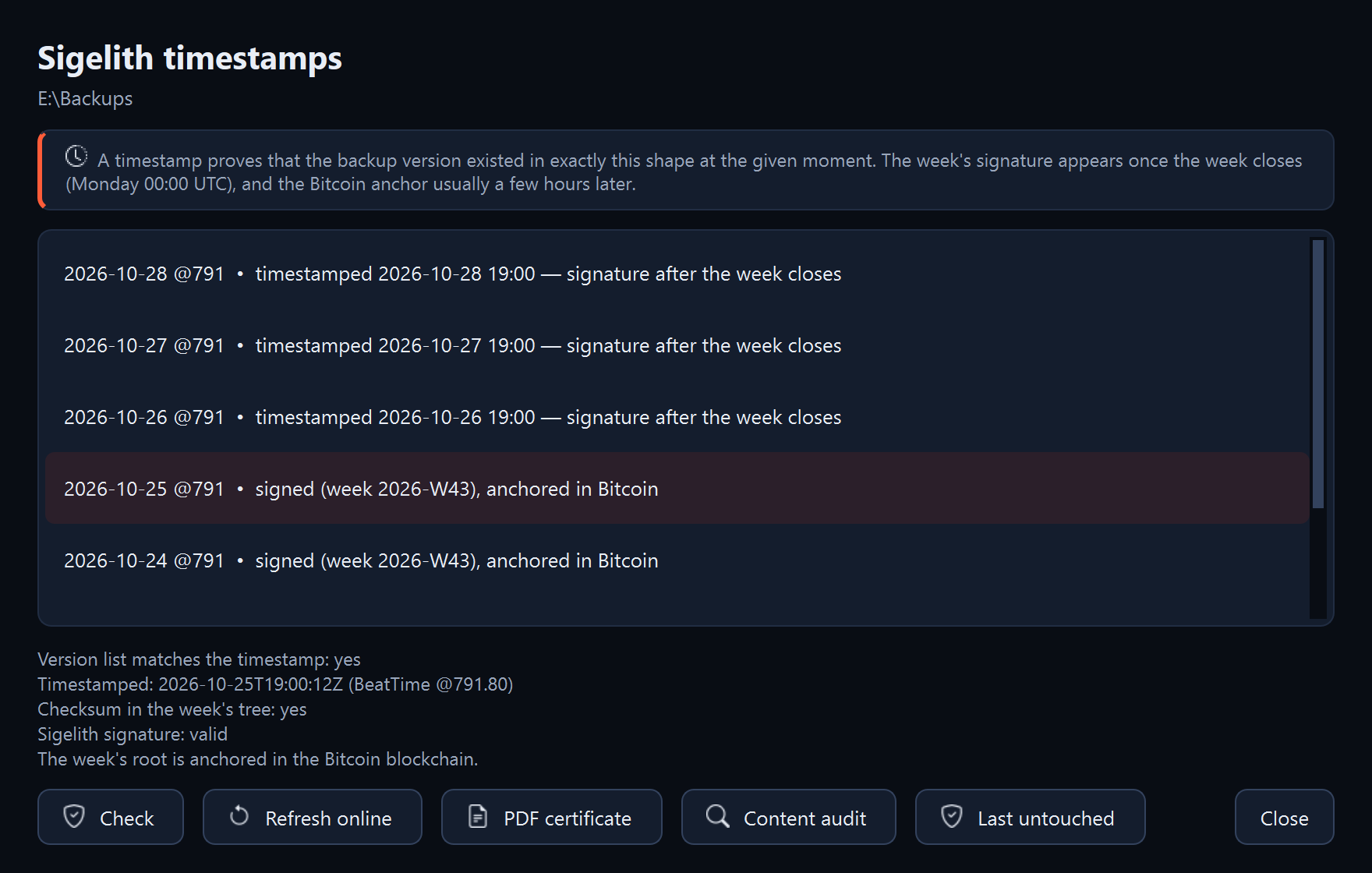
Every new version has a seal. On the “Restore” page, choose the backup folder and click “Timestamps…”. The window shows the versions with a seal and their status:
- “waiting for a connection to Sigelith”: the timestamp has not been sent yet;
- “timestamped …”: Sigelith has accepted the timestamp. The week's signature appears after the week closes, on Monday at 00:00 UTC;
- “signed (week …)”: the seal has the Sigelith week's signature;
- “signed (week …), anchored in Bitcoin”: the week's root is recorded in the Bitcoin blockchain, usually a few hours after the signature.
When you select a version, the program checks its seal without going online and shows, among other things, the moment of timestamping (UTC and BeatTime) and the result of checking the Sigelith signature.
What next
- “Refresh online” sends timestamps that are waiting and fetches the week signatures and the state of the Bitcoin anchor. With later backups with timestamping, the program does this by itself.
- “PDF certificate” opens the timestamp certificate on the Sigelith website.
- A proof for a single file: see “Creating a time proof for a single file”.
- The program does not top up sealed versions without timestamping (see “Finishing an interrupted backup”). Retention rules delete them like any other version (see “Choosing how many versions to keep”). Record a version you need for years on a disc (see “Recording a backup version on a disc”).
If something goes wrong
- In the backup summary: “The timestamp is waiting for a connection to Sigelith”: there was no internet connection, or the service did not respond. The timestamp is sent with the next backup with timestamping, or when you click “Refresh online” (see “A seal or timestamp is waiting”).
- “The timestamp could not be saved: …”: the message gives the reason. The details are in the log (see “Where to find details: the program log”).
- “There are no timestamps in this backup folder yet.”: no version in this backup folder has a seal. Tick “Timestamp the version with Sigelith” and make a backup.