Recording a backup version on a disc
Why
To have a chosen backup version also on a disc that is kept apart from the computer and its drives. You can record the whole version or only selected folders.
Before you start
- Connect the burner and have a blank disc ready (see “Which discs and which burner to choose”).
- Connect the backup drive.
- On the drive with the working folder (C: by default), you need roughly twice as much free space as the disc will take. The wizard gives the exact figure.
- If the version has a Sigelith seal, it is best to record it once the seal is complete (see “A seal or timestamp is waiting”).
Step by step
- In the menu on the left, click “Restore”. In the “Where we restore from” box, click “Choose…” and choose the backup folder: the main backup folder, not a dated folder.
- At the bottom of the page click “Archive discs…”, and in the window that opens, “Record disc…”.
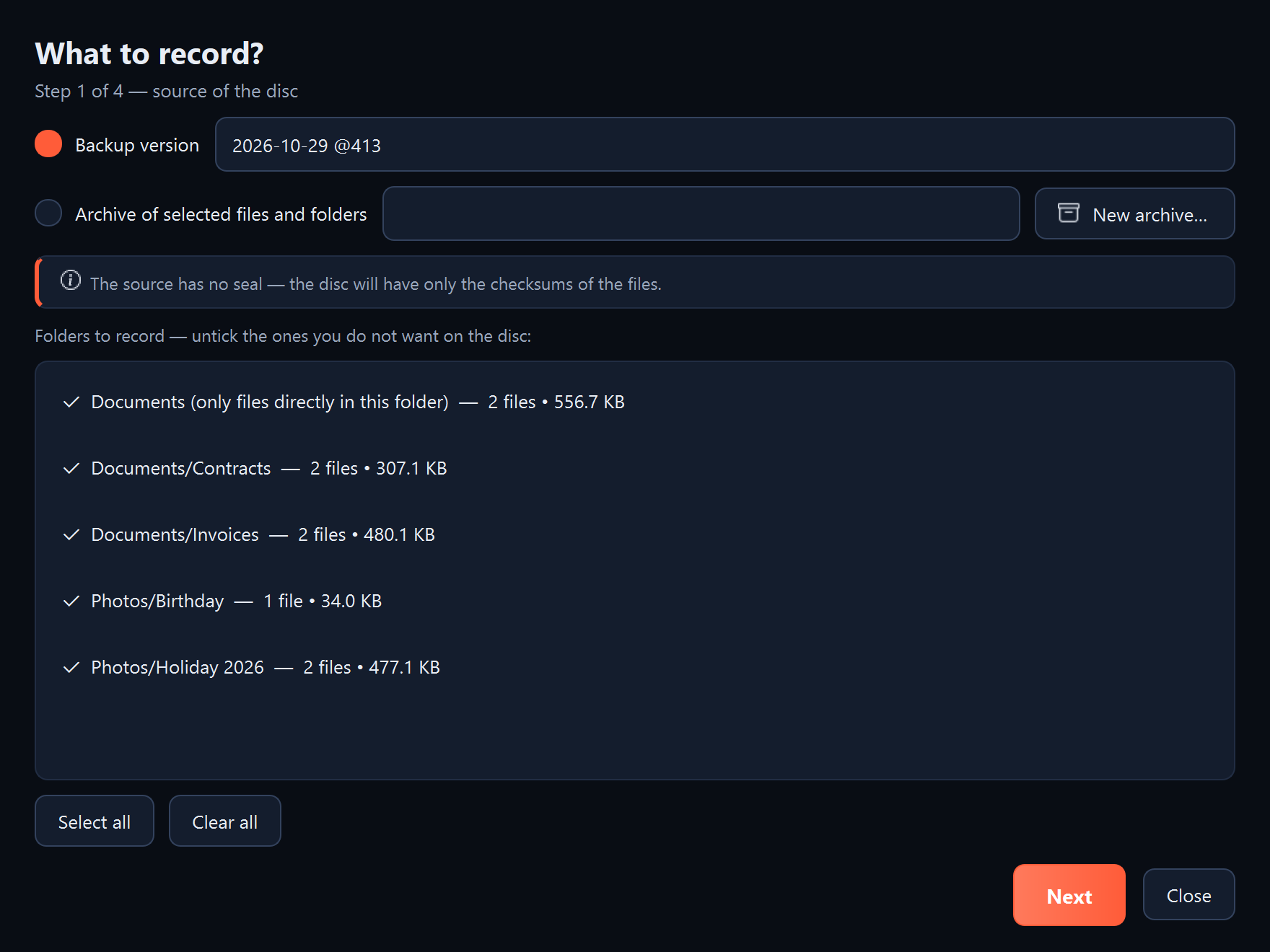
- The “What to record?” page (Step 1 of 4): select “Backup version” and choose the version from the list. Wait until the program loads it. For a very large backup, counted in hundreds of thousands of files, this can take a few minutes.
- In the “Folders to record” list, leave ticked only the folders you want to record. To record one folder, click “Clear all” and tick that one. Click “Next”.
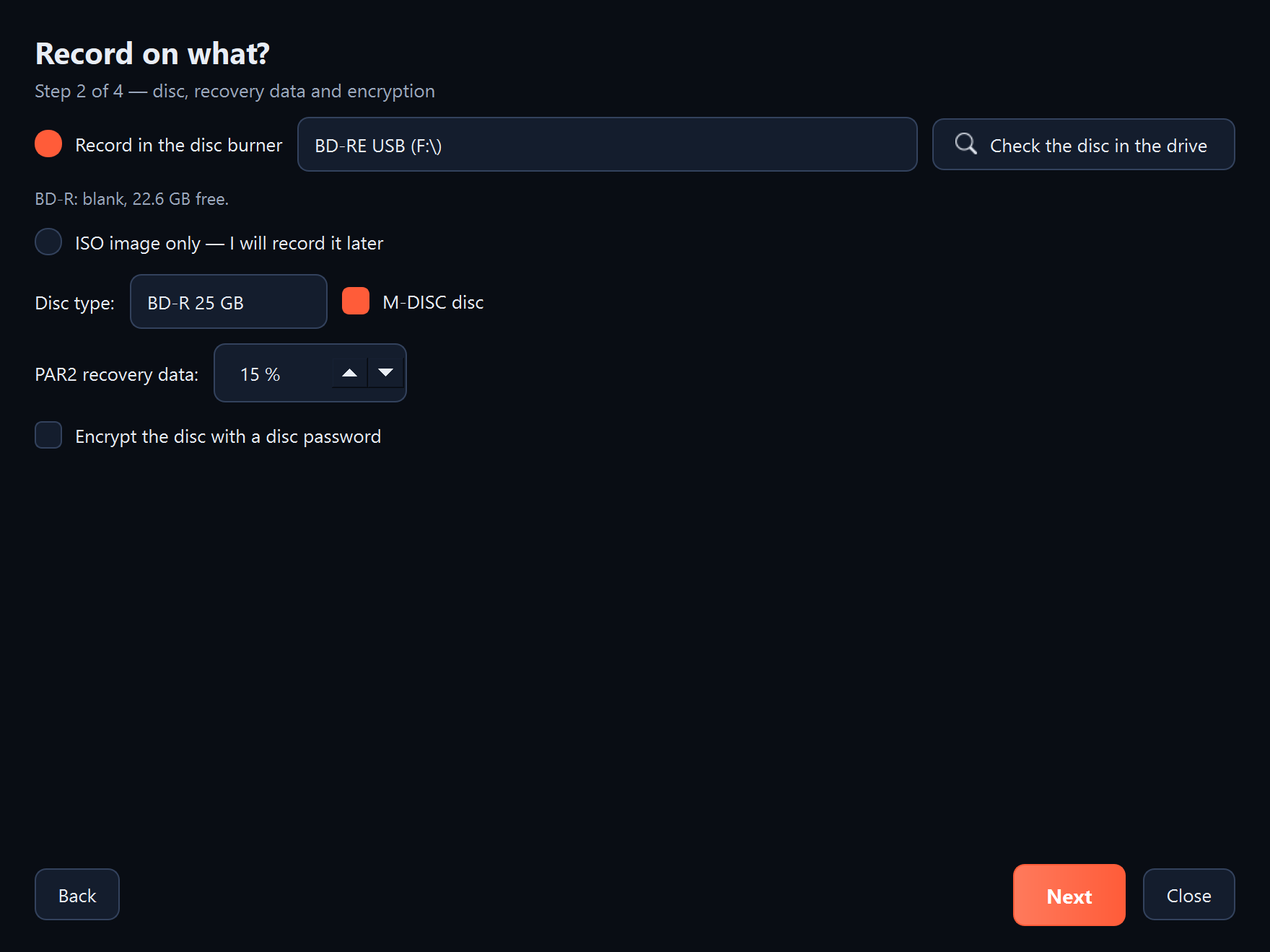
- The “Record on what?” page (Step 2 of 4): select “Record in the disc burner” and choose the burner. Insert a blank disc and click “Check the disc in the drive”. The disc type and free space appear, for example “blank, 22.6 GB free”.
- If it is an M-DISC disc, tick “M-DISC disc”. Leave the “PAR2 recovery data” field at 15%, or increase it if the disc is to be kept for a very long time. Click “Next”.
- The “Disc plan” page (Step 3 of 4): check the number of discs and the “Space needed in this folder” line. Click “Next”.
- The “Recording” page (Step 4 of 4): the program prepares the disc contents, makes a disc image and checks it. The disc is not needed yet. When “Image ready and checked” appears, click “Record disc…”.
- The program asks: “Record the disc … in the drive …?”. Click “Yes”. From this moment, do not take out the disc or disconnect the burner until the program has finished. Recording cannot be interrupted.
- If the burner cannot pull the disc back in by itself, as with many USB burners, the program asks: “The drive has ejected the disc. Push it back in and click OK”. Push the disc in and click “OK”. The program then reads every file from the disc and checks it.
- The program asks: “Where is the disc … kept?”. Enter where the disc will be kept, for example “a cupboard at the office”, and click “OK”.
- Click “Finish”.
What you should see
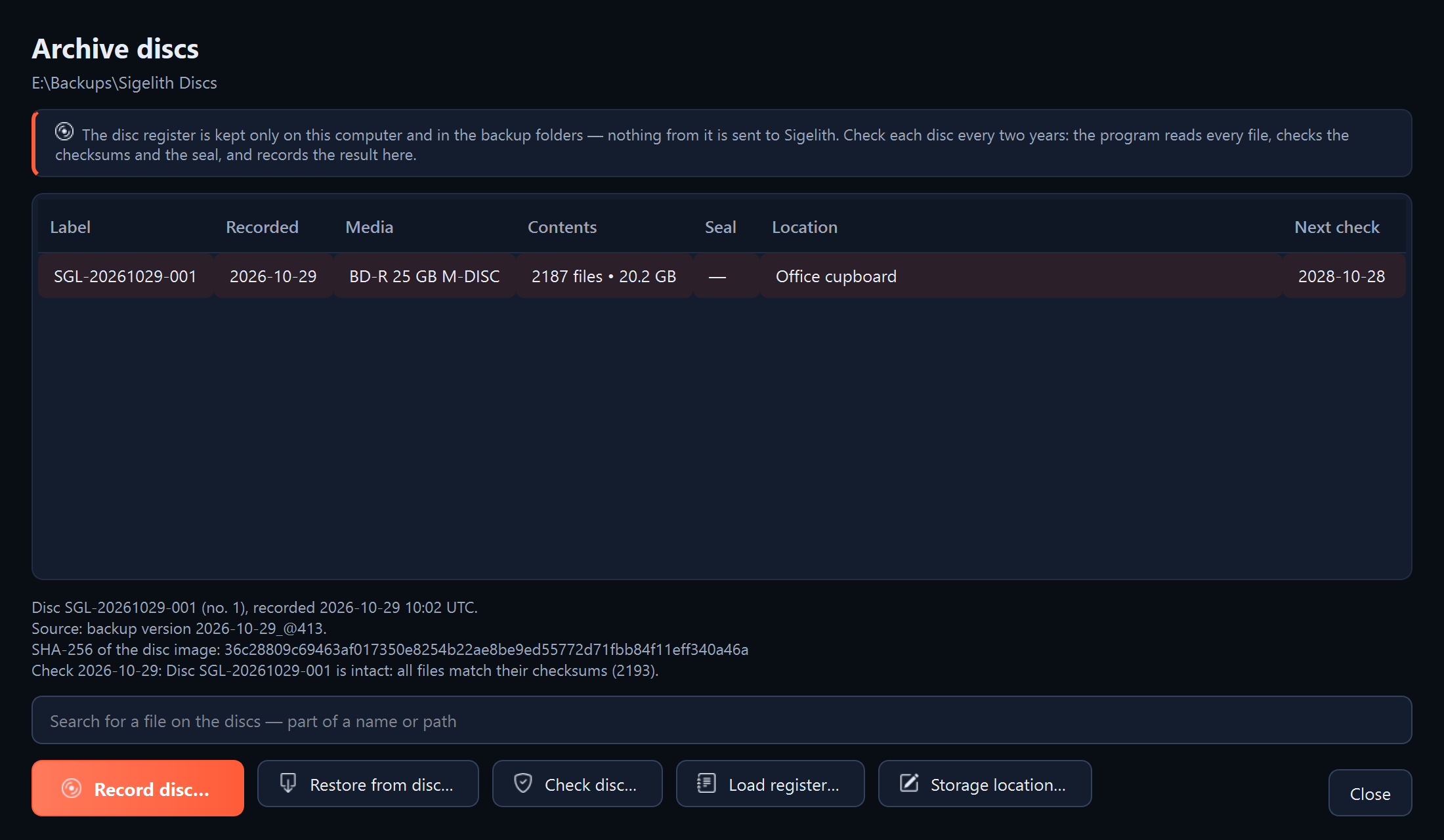
The message “Done” with the number of discs in the register. The disc is in the “Archive discs” window with its recording date and the date of the next check, two years from now.
What next
- Write the disc label, for example SGL-20261102-001, on the ring near the centre of the disc with a solvent-free marker.
- Put the disc away in the chosen place.
- Check the disc every two years (see “Checking a disc”).
- You restore files from the disc in the program (see “Restoring files from a disc”) or without it (see “Reading a disc without the program”).
If something goes wrong
- “There is no disc in the drive” or “The disc is not ready yet”: wait a few seconds after inserting the disc and click “Check the disc in the drive” again.
- “the disc is not blank”: the program records only on a blank disc. Insert a new one.
- “Not enough space on the drive with the folder”: on the “Disc plan” page, choose a working folder on a drive with more free space.
- “The recording failed”: insert a new blank disc and click “Record disc…” again. The image is ready; it does not have to be made again.
- “The recorded disc did not pass the check”: destroy that disc and record the image again, on a new disc.
- The wizard shows no version: first choose the backup folder on the “Restore” page (step 1).
- Loading the version takes a long time: with a very large backup this is normal. You can stop it with the “Stop” button.