Recording selected files and folders
Why
To record any files and folders on a disc, independently of the backups, for example documents, photos from several years or papers to keep for years. The program turns them into an archive, that is, an index of the files with their checksums, timestamped with Sigelith. Only the checksum of the index goes to Sigelith, not the files or their names.
Before you start
- An archive records the state of the files at the moment it is created. Until the disc is recorded, do not change or delete files in the archive, or the program will ask for a new archive. New files in those folders do no harm; they simply do not go on the disc.
- A complete seal needs the week's signature (after the week is closed in Sigelith) and the Bitcoin anchor, usually a few days. It is best to create the archive right away and record the disc once the seal is complete. The program reminds you by itself.
Step by step
- In the menu on the left click “Restore”, at the bottom of the page “Archive discs…”, and then “Record disc…”.
- On the “What to record?” page, select “Archive of selected files and folders” and click “New archive…”.
- In the “New archive” window, click “Add folder…” or “Add files…” and choose what should go into the archive. You can add several folders and files.
- Enter a name for the archive, for example “Documents 2026”, and click “Create archive”.
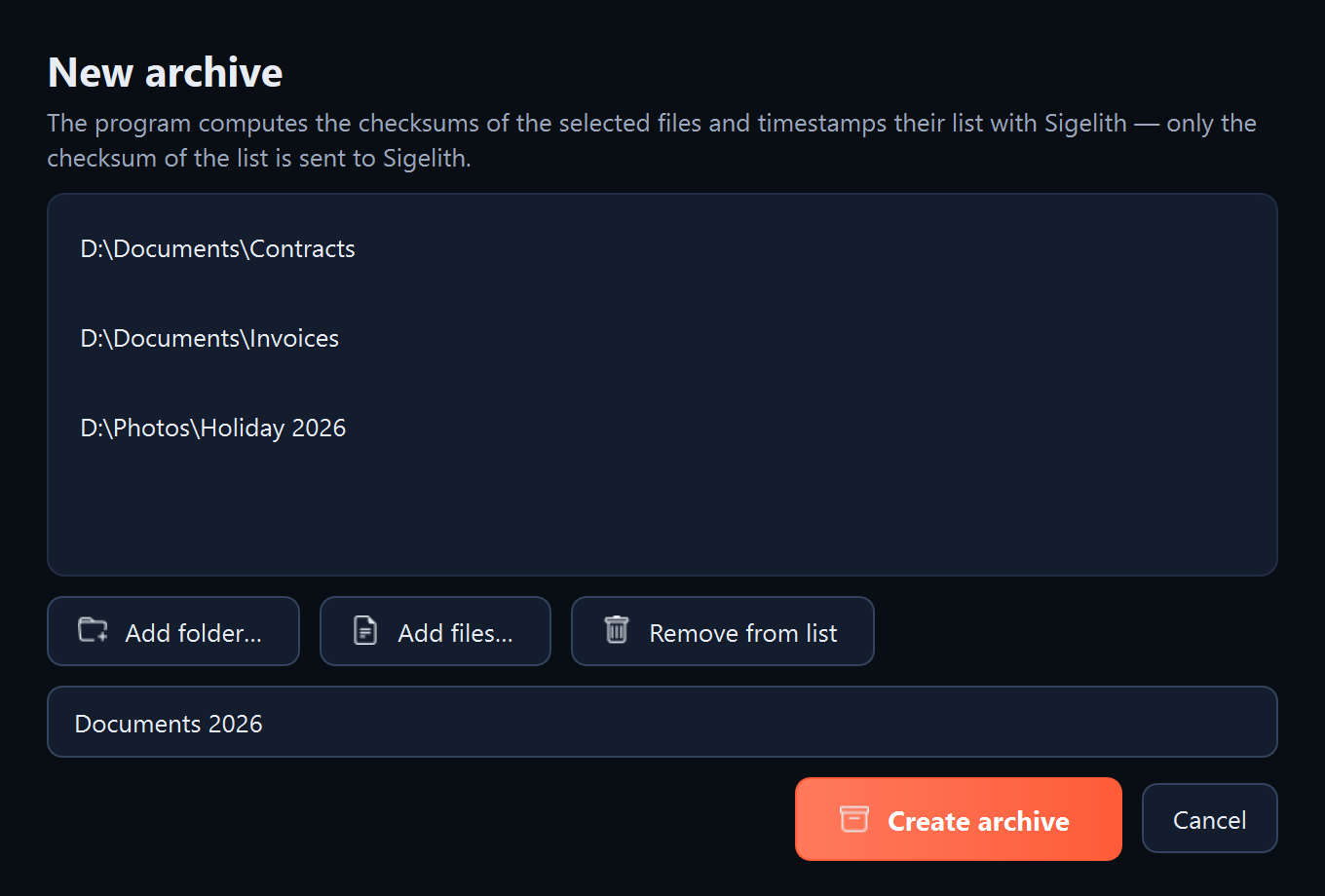
- The program computes the checksums of all files and timestamps the index with Sigelith. With many gigabytes this can take a few minutes.
- You return to the wizard with the new archive on the list. Above the folder list you see the state of the seal, for example “The seal is still waiting for the week's signature”.
- Choose one of two:
- Record later, with a complete seal: click “Remind me when the seal is complete”, and then “Close”.
- Record now: click “Next” and record the disc as in the task “Recording a backup version on a disc”, from step 5.
- When the program reminds you that the seal is complete: click “Archive discs…”, then “Record disc…”, select “Archive of selected files and folders”, choose your archive from the list and record the disc as in the task “Recording a backup version on a disc”, from step 5.
What you should see
After the archive is created: the archive in the list next to “Archive of selected files and folders”, with its name, date, number of files and size. After recording: the disc in the “Archive discs” window.
What next
As with every disc: write the label on the ring, put the disc away and check it every two years (see “Checking a disc”).
If something goes wrong
- “These files are no longer where they were when the archive was created” or “These files have changed since the archive was created”: the archive no longer matches the files on the drive. Click “New archive…” and create it from the current files.
- “The chosen folders have new files that this archive does not include”: this is just information. The new files will not go on the disc. If they should, create a new archive.
- A few files are missing from the archive: the program leaves out system and temporary files: Thumbs.db, desktop.ini, .DS_Store, files whose names start with “~$” (left behind by Microsoft Office), and unfinished .part and .crdownload downloads.
- The seal has been waiting a long time: see “A seal or timestamp is waiting”.