Checking that nobody has tampered with files in the backup
Why
The backup's table of contents lies next to the files. Whoever replaces the files, for example malware, an intruder or a failing drive, can also replace the table of contents, and then an ordinary check will not notice. The content audit compares the files with the version's seal in the Sigelith public log, which cannot be changed without anyone noticing.
Before you start
- The audit works for versions timestamped with Sigelith (see “Timestamping backup versions with Sigelith”).
- It confirms only versions with the week's signature. A week closes on Monday at 00:00 UTC; versions from the current week get the signature only after that.
- An encrypted backup: have the backup password ready. The audit itself does not go online.
Step by step
- In the menu on the left, click “Restore” and, in the “Where we restore from” box, choose the main backup folder.
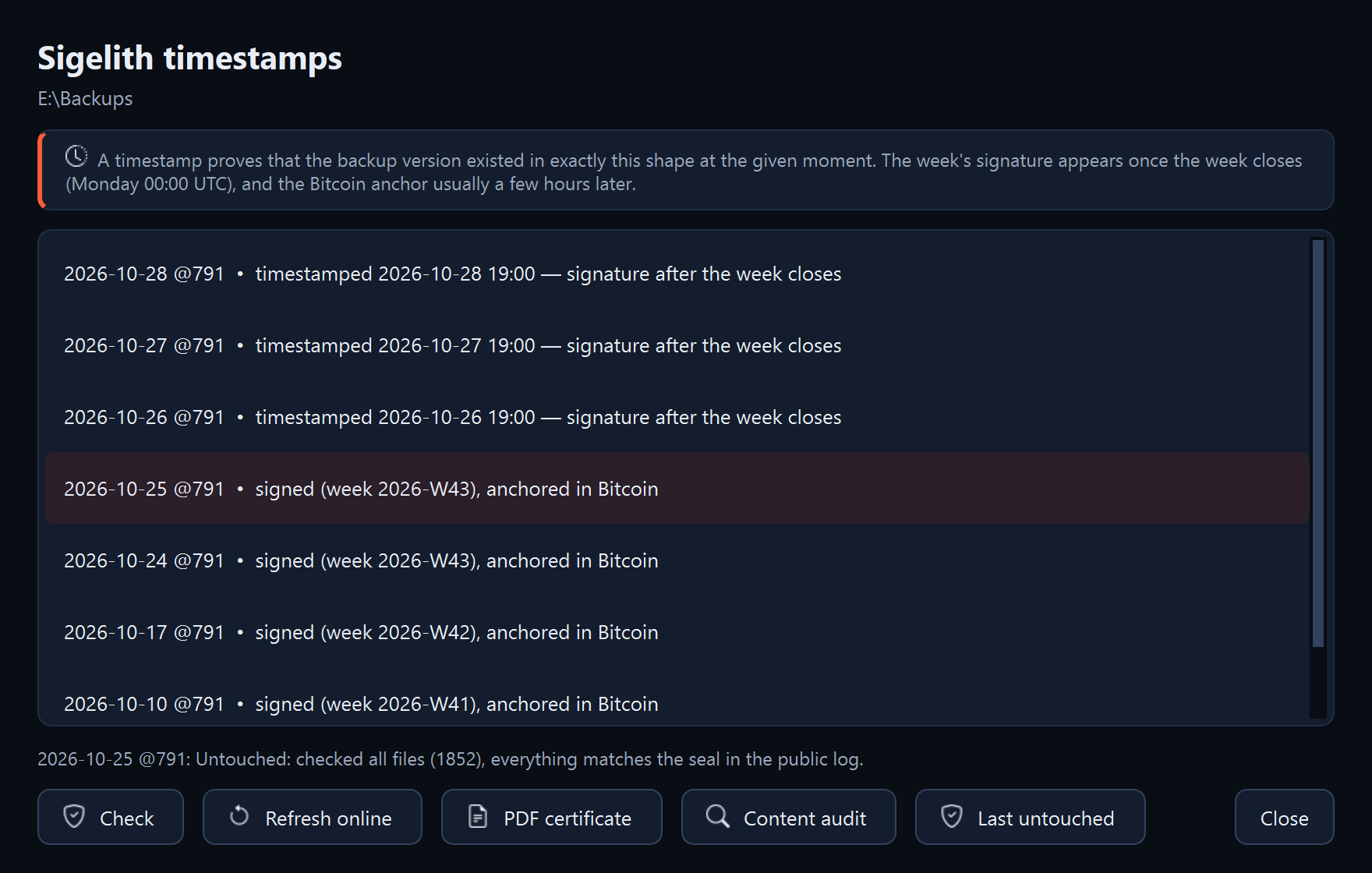
- Click “Timestamps…”. The window shows the versions with a seal and their status, for example “signed (week …)”.
- Select a version and click “Content audit”. The program reads every file of this version from the drive, decrypts it or joins its parts, and compares its checksum with the checksum in the seal. For an encrypted backup it asks for the password.
- To find the newest version you can safely restore from, click “Last untouched”. The program checks the versions from the newest until it finds one that matches its seal.
What you should see
- “Untouched: checked all files (…), everything matches the seal in the public log.”
- After “Last untouched”: the result for every version checked and the name of the last untouched one.
After every backup with timestamping, the program itself checks a sample of 24 files from one older, signed version. After a backup started manually, the result is in the summary window: “Seal audit: a sample of version … matches the public log.” or a warning starting with “WARNING”. After a scheduled backup, the warning arrives as a Windows notification and goes into the program log.
What next
- If a version has been tampered with, restore from the last untouched one. You save the version from a chosen day in “Browse” (see “Restoring the whole backup or a single folder”).
- Check the computer with an antivirus program, and the backup drive with a backup check (see “Checking that the backup is intact”).
If something goes wrong
- “TAMPERED WITH or damaged”: the result lists the changed, missing or unreadable files. See “A check reports changed or damaged files”.
- “The version's seal does not check out: The week has not closed yet”: the version does not have the week's signature yet. After Monday 00:00 UTC, click “Refresh online” (see “A seal or timestamp is waiting”).
- “The version's seal does not check out: The timestamp is waiting for a connection to Sigelith.”: the timestamp has not been sent yet. Click “Refresh online” (an internet connection is needed). The program also sends it by itself with the next backup with timestamping (see “A seal or timestamp is waiting”).
- “The version's seal does not check out” with another reason, for example “The version list was changed after it was timestamped.”: the seal or the version list has been changed. Treat this version as tampered with.
- “There are no timestamps in this backup folder yet.”: no version has a seal. Turn on “Timestamp the version with Sigelith” for the next backups.
- “No sealed version is untouched.”: see “A check reports changed or damaged files”.