Restoring the whole backup or a single folder
Why
When you need many files at once, for example after a drive failure, after an attack by a virus that encrypts files, or after a folder was deleted by accident.
Before you start
- The “Restore” page restores the whole backup, with the newest state of each file.
- It is safest to restore into a new, empty folder, for example C:\Recovered, and move the files you need from there. That way you overwrite nothing by mistake.
- If you are restoring after an attack by a virus that encrypts files, first remove the virus from the computer.
Step by step
- In the menu on the left, click “Restore”.
- In the “Where we restore from” box, click “Choose…” and choose the main backup folder, not a dated folder. Below the field a description of the backup appears: the number of files, the size, the date of the last update and the source folders.
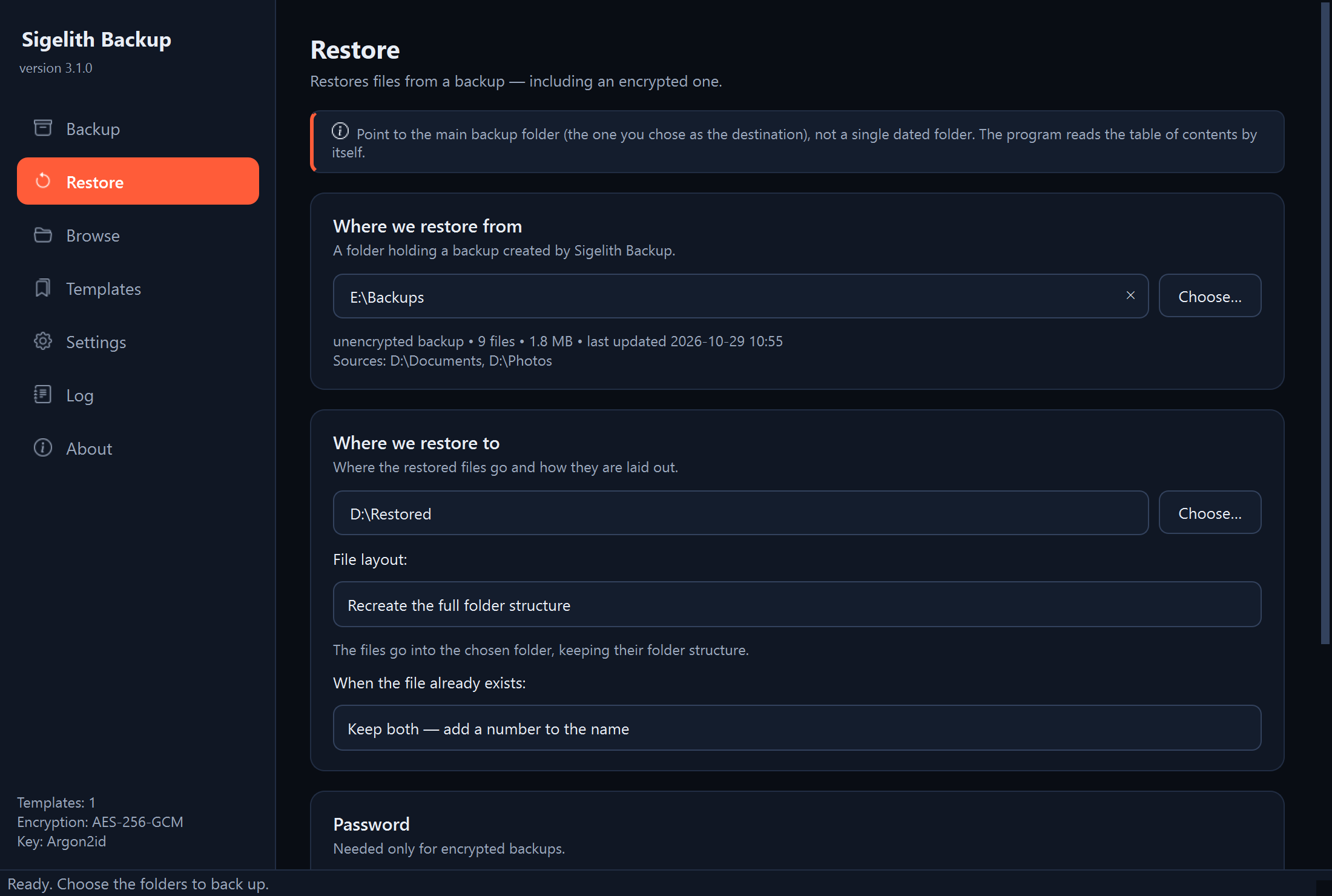
- In the “Where we restore to” box, click “Choose…” and choose the folder the files will go to.
- In the “File layout” field, choose one of the options:
- “Recreate the full folder structure”: the files in the same folder layout as at the source, inside the chosen folder. Recommended.
- “Everything into one folder”: all files in one folder, without subfolders. Handy when you are looking for a few files.
- “Restore to the original locations”: every file goes back to where it was copied from. The program asks you to confirm.
- In the “When the file already exists” field, choose what to do with files of the same name:
- “Keep both”: the program adds a number to the name of the restored file. Safe.
- “Skip existing files”: files that are already there are left untouched.
- “Overwrite existing files”: the current content of those files is gone for good. The program asks you to confirm.
- If the backup is encrypted, enter the password in the “Password” box.
- Click “Restore files” and wait until it finishes.
What you should see
The summary “Done:” with the number of files restored, their size and how long the restore took. The files are in the chosen folder.
Only one folder
The “Restore” page always restores the whole backup. You save a single folder, also from any older version, in “Browse”:
- In the menu on the left, click “Browse”, choose the backup folder and click “Open”.
- In the list of versions, choose the version with the state of the folder you need.
- Select the folder in the tree and click “Save folder…”.
- Choose where the folder should appear. If the backup is encrypted, the program asks for the backup password.
What next
- Check the restored files: open a few of them.
- When everything is in place, you can delete the folder you restored into.
If something goes wrong
- “The original location of … is unknown”: for this file the backup has no record of where it came from. Choose the “Recreate the full folder structure” layout.
- The “Folders in AppData” window: in the Microsoft Store version of the program, Windows stores new folders created directly in the AppData\Local or AppData\Roaming folder in a private copy belonging to the program, which other programs cannot see. Click “Cancel”, restore the files to an ordinary folder, for example C:\Recovered, and move them into place by hand.
- “Finished with errors”: the details are on the “Log” page (see “Where to find details: the program log”). For a wrong password, see “Restoring files from an encrypted backup”.