E. Recovering files from discs and caring for discs
The disc register: where discs are kept and finding files
Why
The disc register tells you which discs were recorded, what is on each of them, where they are kept and when to check them. With it, you know which disc to look for before you start searching the cupboard.
Before you start
- The register lives only on your computer and in the backup folders. Nothing from it goes to Sigelith.
- After every backup, the program saves a copy of the register in the backup folder, in the “Sigelith Discs” folder. In an encrypted backup, the file lists are encrypted with its password.
- Every new disc carries, in its “catalog” folder, the register of all earlier discs.
Step by step
Viewing the register
- In the menu on the left, click “Restore”, and at the bottom of the page “Archive discs…”.
- The table shows every disc: its label, recording date, medium, contents, seal status, location and the date of the next check.
- Select a disc to see the details: the source of the disc, its number in the set, the checksum of the image and the result of the last check.
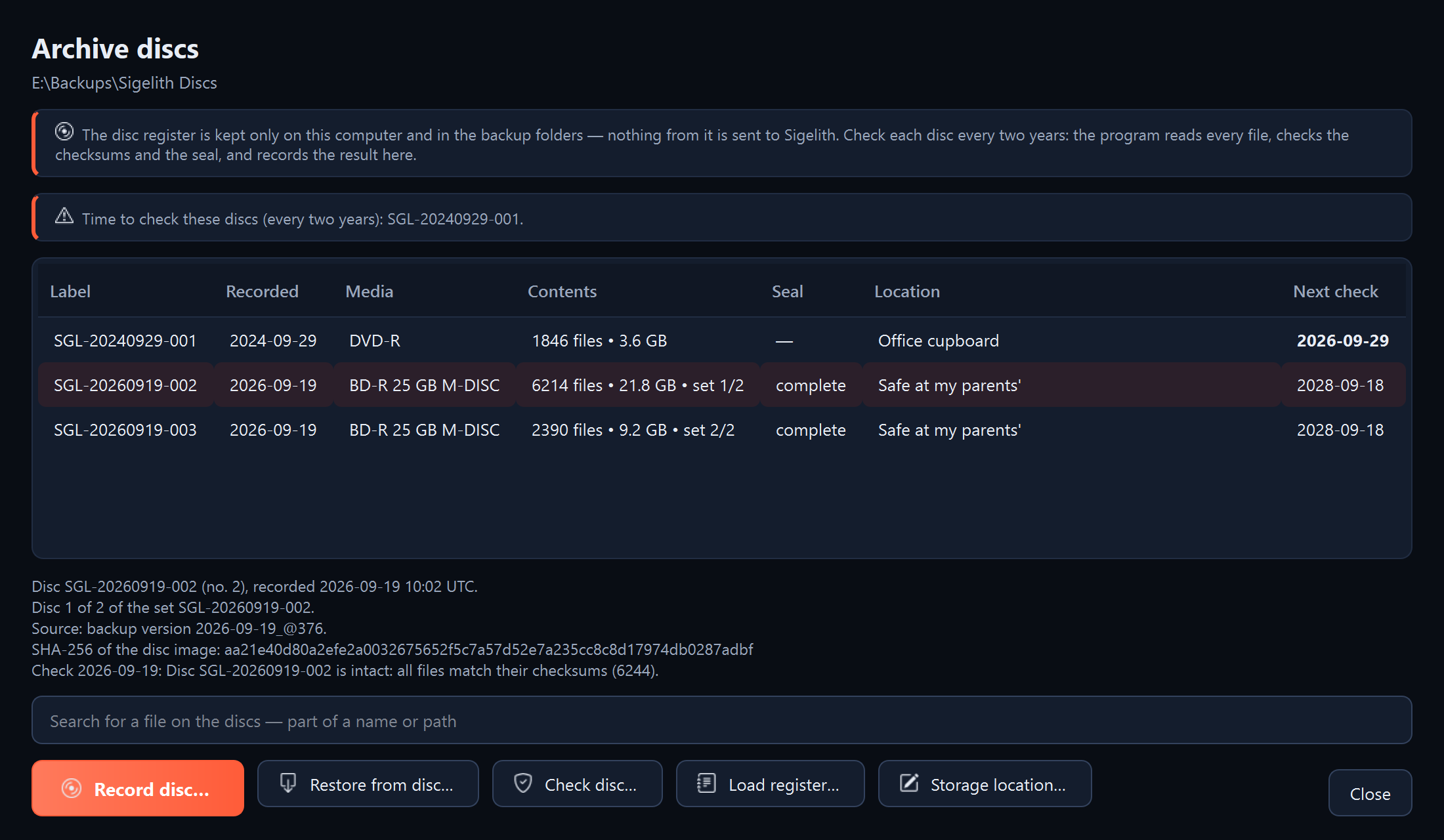
Recording where a disc is kept
- Select the disc and click “Storage location…”.
- Enter the place, for example “a safe at your parents'”, and click “OK”. Change it whenever you move the disc.
Searching for a file on the discs
- In the “Search for a file on the discs” field, type part of the file's name or path.
- Below, the discs with this file appear. For split files, the program shows the part number.
Loading the register, for example on a new computer
- Click “Load register…”.
- Choose a backup folder (the program finds the “Sigelith Discs” folder in it), a disc or its “catalog” folder. The newest backup usually has the most complete register. From a disc, the program loads the discs recorded before it; the disc itself is added by a check (see “Checking a disc”).
- If the register is encrypted, the program asks for the disc password or the backup password.
Removing a disc from the register
When a disc has been lost or destroyed, or an ISO image was never recorded:
- Select the disc and click “Remove from register…”.
- Confirm. The program stops reminding you about this disc. It changes nothing on the disc itself, if you have it.
What you should see
- After entering the place: the new place in the “Location” column.
- After loading the register: “Register loaded” with the number of new discs.
- When searching: a list of discs with the file, or “No such file on the discs in the register”.
What next
- When the disc is to hand, restore files from it (see “Restoring files from a disc”).
If something goes wrong
- “There is no disc register here”: choose a disc, its “catalog” folder or a backup folder that contains the “Sigelith Discs” folder.
- The register does not know a disc you have in your hand: check that disc (see “Checking a disc”). The program offers to add it.