Finding a file in the backup and browsing its versions
Why
To look into the backup without restoring anything: see what each version contains, find a file by name and check when it changed.
Before you start
- Connect the backup drive.
- Every dated backup run creates a version: the complete set of files from that moment. Versions have dated names, for example “2026-10-27 @487”. The number after “@” is the time in BeatTime (a day has 1000 beats); the date is enough for searching.
Step by step
- In the menu on the left, click “Browse”.
- In the “Backup” box, click “Choose…”, choose the main backup folder and click “Open”.
- In the list of versions, choose the version you want to look at. Below it you see its folders and files, with their size and modification date.
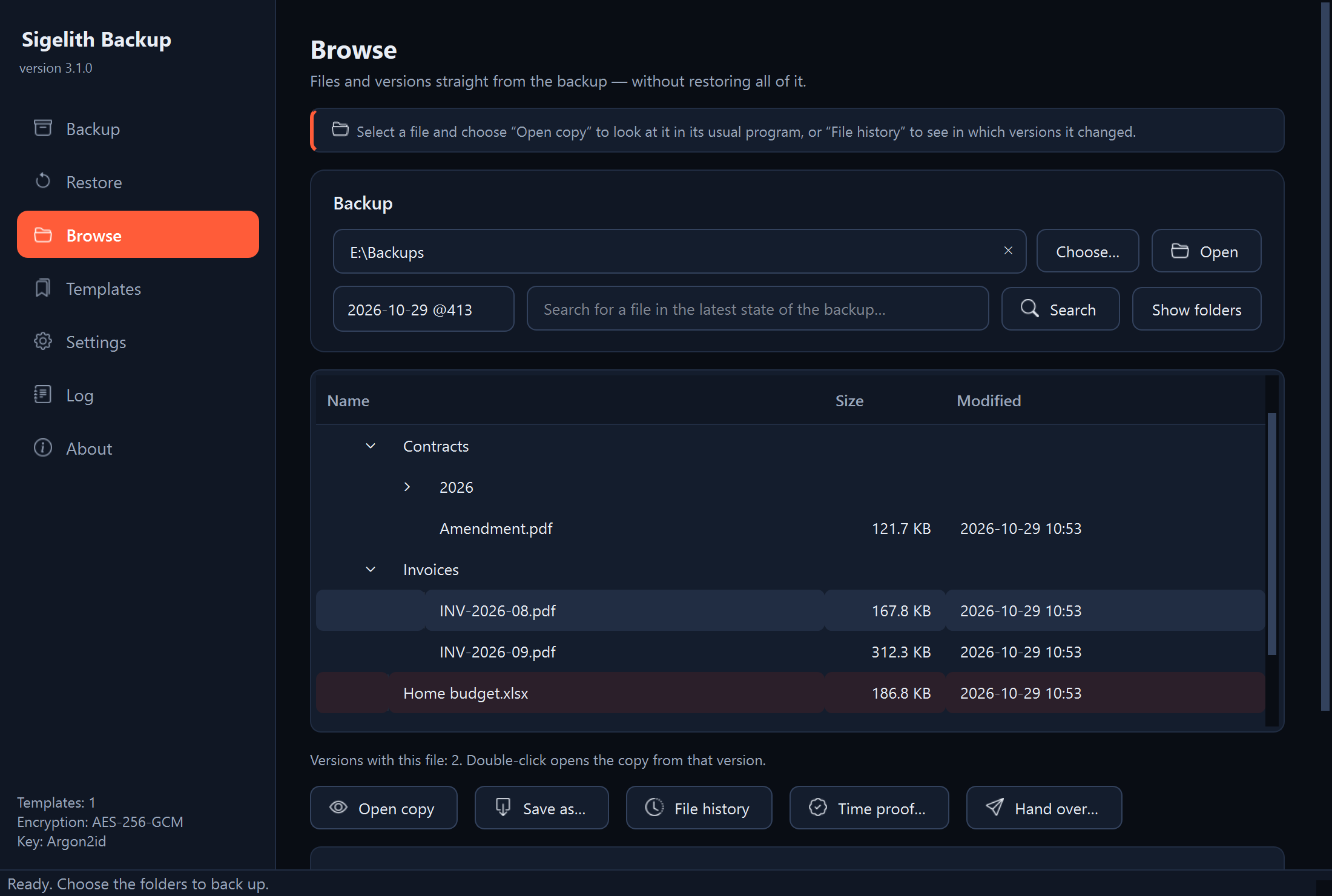
- To find a file by name, type part of the name or path in the search field and click “Search”. Upper and lower case do not matter. The “Show folders” button goes back to the folder tree.
- To see when a file changed, select it and click “File history”. Below, a list appears of the versions that contain the file, marked “changed” or “unchanged”.
- To look into a file, select it and click “Open copy”. The file opens in its usual program, for example a text editor. In the file history, double-clicking a version does the same.
What you should see
The folder tree of the chosen version, and after clicking “File history”, the message “Versions with this file” with their list.
What next
- To recover a file or an older version of it, see “Restoring a single file or an older version of it”.
- “Open copy” opens a temporary file that disappears when the program closes. Do not save changes in it: first save the file to a place of your choice.
If something goes wrong
- “There are no backup versions in this folder”: the chosen folder is not the main backup folder. Choose the folder that contains the dated folders.
- The search does not find a file that used to be in the backup: the search looks through the newest state of the backup. You find an older file by choosing an older version from the list and browsing its folders.
- A version is marked “(unfinished)”: this backup run was interrupted before it ended, so the version holds only some of the files. Choose a complete version.
- The program asks for a password: the backup is encrypted. Enter the password used when it was created.