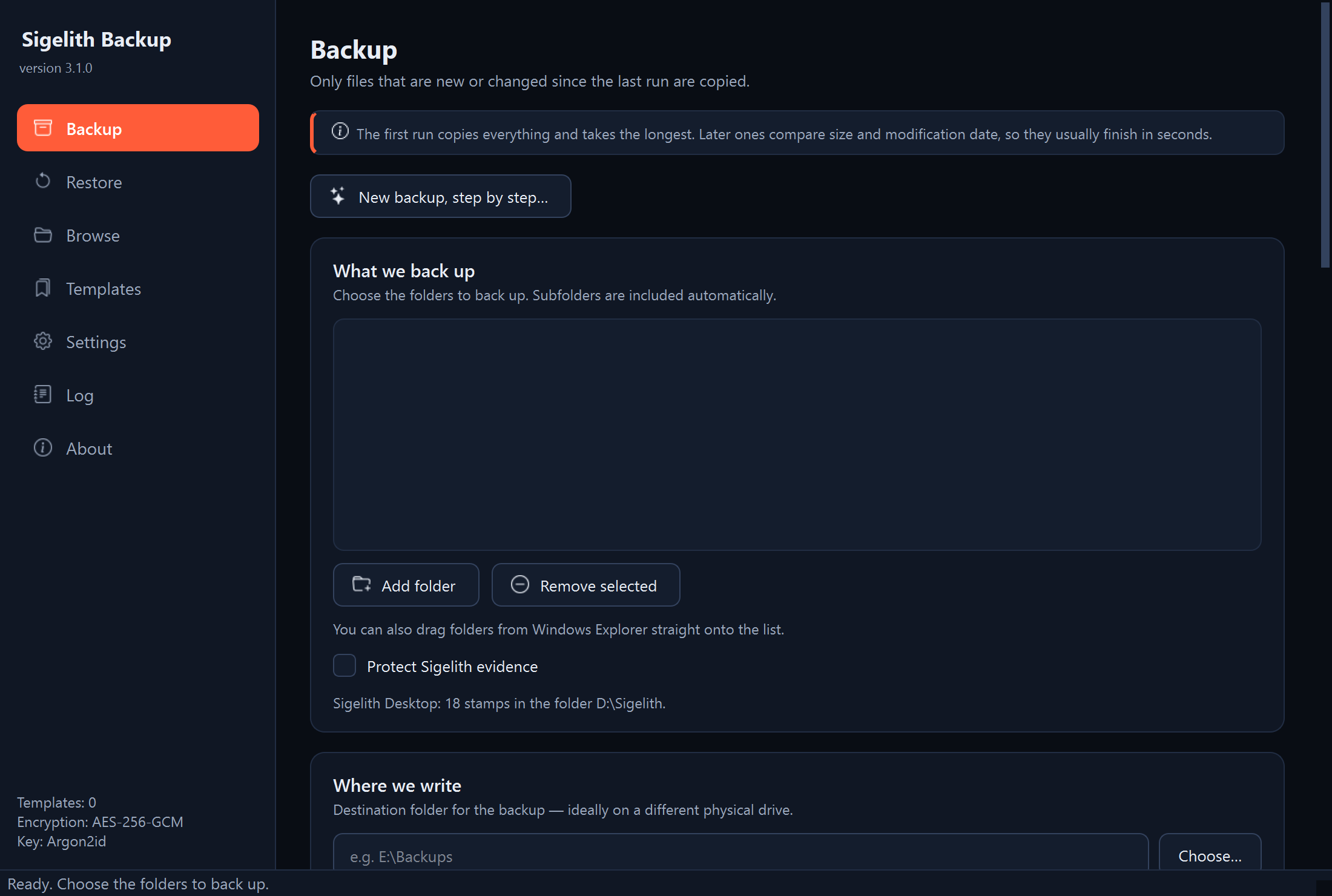
The program window and the icon by the clock
Why
So you know where everything is: on which page you make a backup, recover files or change settings.
Pages in the menu on the left
| Page | What you do there |
|---|---|
| Backup | Make a backup: folders, backup location, how it is written, encryption, exclusions, preview of changes and start. The “New backup, step by step…” wizard is here too. |
| Restore | Recover files from a backup. At the bottom of the page are buttons for the other windows: “Check backup”, “Trial restore”, “Timestamps…”, “Browse…”, “Sigelith evidence…”, “Time capsules…”, “From the off-site backup…” and “Archive discs…”. |
| Browse | Look at every version of a backup like a folder, find a file and its history, and save a single file or a folder. |
| Templates | Saved backup settings with their schedule, and recent operations. You can run, change or delete a template. |
| Settings | Language and theme, default exclusions, starting the program at sign-in, and remembered passwords. |
| Log | The course of operations and the details of errors. |
| About | The program version, licences, privacy policy and the cryptography used. |
At the bottom of the window, the status bar shows what the program is doing at the moment, for example a backup in progress.
The icon by the clock
After you close the window, the program keeps running in the background so that scheduled backups can start by themselves. You then see it as an icon by the clock, in the bottom right corner of the screen. If you cannot see it, click the arrow next to the clock: Windows hides some icons there.
Right-clicking the icon opens a menu:
- “Open Sigelith Backup”: opens the program window;
- “Back up now”: a list of templates, any of which you can run straight away;
- “Pause scheduled backups”: backups from the schedule will not start until you resume them;
- “Quit”: closes the program completely. Scheduled backups will not start until the program is started again.
Through the icon the program also shows Windows notifications, for example about a finished scheduled backup, an error or discs that are due for a check.
The “What would you like to do?” screen
When it starts, the program asks what you would like to do: “Back up now”, “Restore files”, “Check backup” or “Settings”. The “Set up your first backup…” button opens the wizard, and “Close” goes to the full program window. If you tick “Do not show this screen at start-up”, the screen goes away; you can bring it back in the settings.
What next
- Your first backup: see “Creating your first backup with the wizard”.
- Recovering files: see the “Recovering files” chapter.
If something goes wrong
- The window disappeared when you clicked the cross: the program keeps running by the clock. Open it with the icon or from the Start menu.
- A scheduled backup did not start: see “A scheduled backup did not start”.