Creating your first backup with the wizard
Why
The wizard sets up a backup in five steps and, at the end, shows what will happen before anything is copied. It saves the settings as a template, which you then run with one click or on a schedule.
Before you start
- Connect the drive the backup will live on. Ideally a different physical drive from the one you are protecting: a backup next to the original is lost together with it.
- If the backup is to be encrypted, think of a password and write it down somewhere safe. The password cannot be recovered or reset.
Step by step
The wizard opens by itself the first time you start the program. Later you open it on the “Backup” page with the “New backup, step by step…” button.
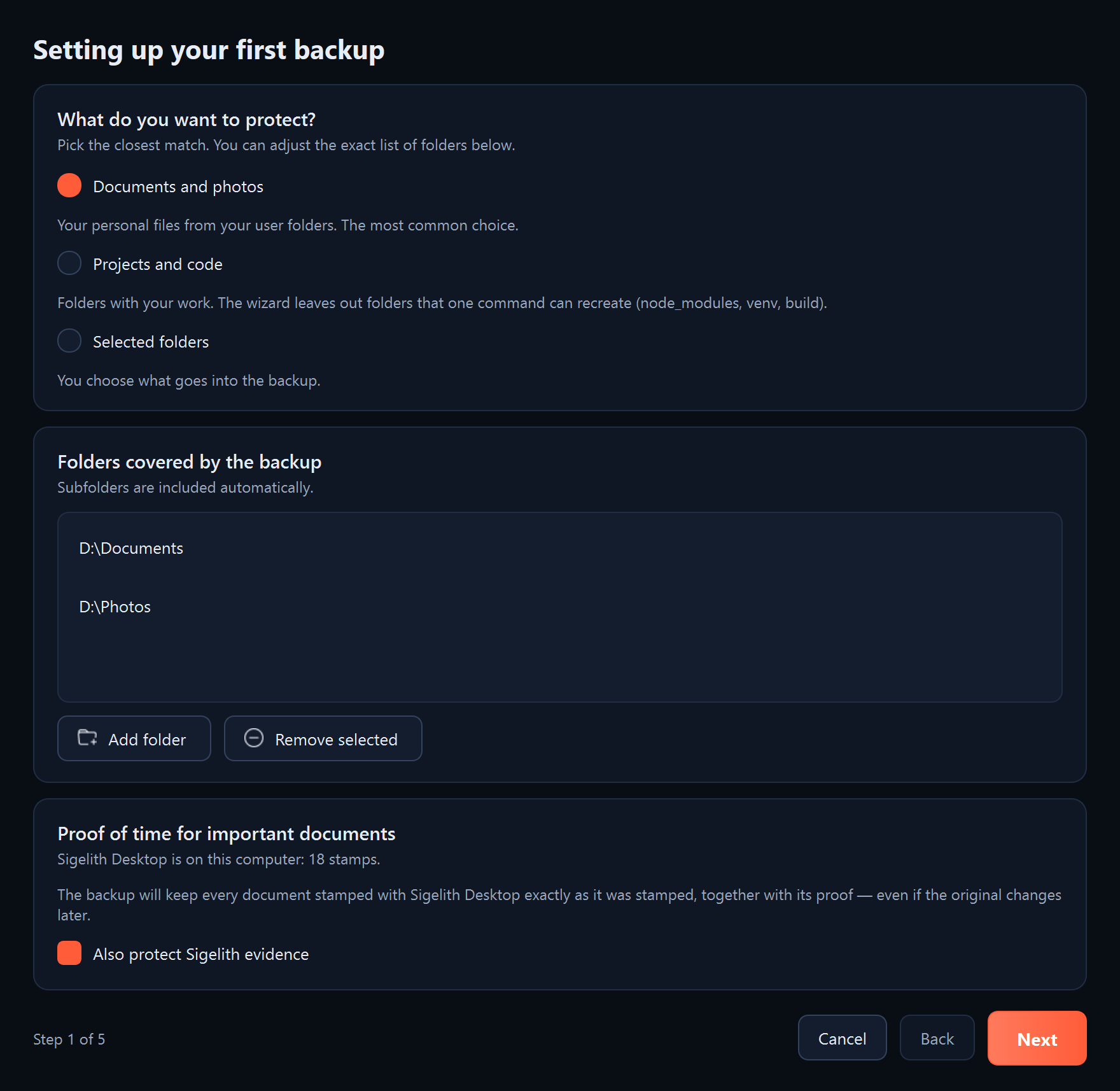
- “What do you want to protect?” (Step 1 of 5). Choose one of the options:
- “Documents and photos”: your personal files from the user folders. The most common choice.
- “Projects and code”: folders with your work. The wizard leaves out folders that can be rebuilt with a single command, such as node_modules.
- “Selected folders”: you choose what goes into the backup.
You can adjust the folder list below: “Add folder” adds a folder, and “Remove selected” removes an entry from the list (it does not delete any files). Click “Next”.
- “Where should the backup go?” (Step 2 of 5). The wizard shows the connected drives, rated by how well they suit a backup. Click “Choose” next to the drive for the backup, or “Choose another folder…”. Click “Next”.
- “How much protection do you want?” (Step 3 of 5). Choose one of the options:
- “One up-to-date copy”: the fastest and smallest, with no history of earlier versions.
- “History of changes (recommended)”: every run creates a dated folder. Unchanged files do not take up space a second time.
- “History and encryption”: as above, and every file in the backup is also encrypted. Enter the password twice, at least 8 characters. Leave “Remember the password in Windows Credential Manager” ticked, because without it scheduled backups will not start by themselves.
Click “Next”.
- “When should backups run?” (Step 4 of 5). Choose one of the options:
- “Daily at a set time (recommended)”: set the time. If the computer is off at that time, the backup starts once it is switched on.
- “Live”: for a drive that is connected all the time or often. Changes reach the backup a few minutes after a file is saved.
- “When the backup drive is connected”: for a USB drive you connect now and then. At most one backup every 12 hours.
- “Manually”: you start the backup yourself, with a button.
Click “Next”.
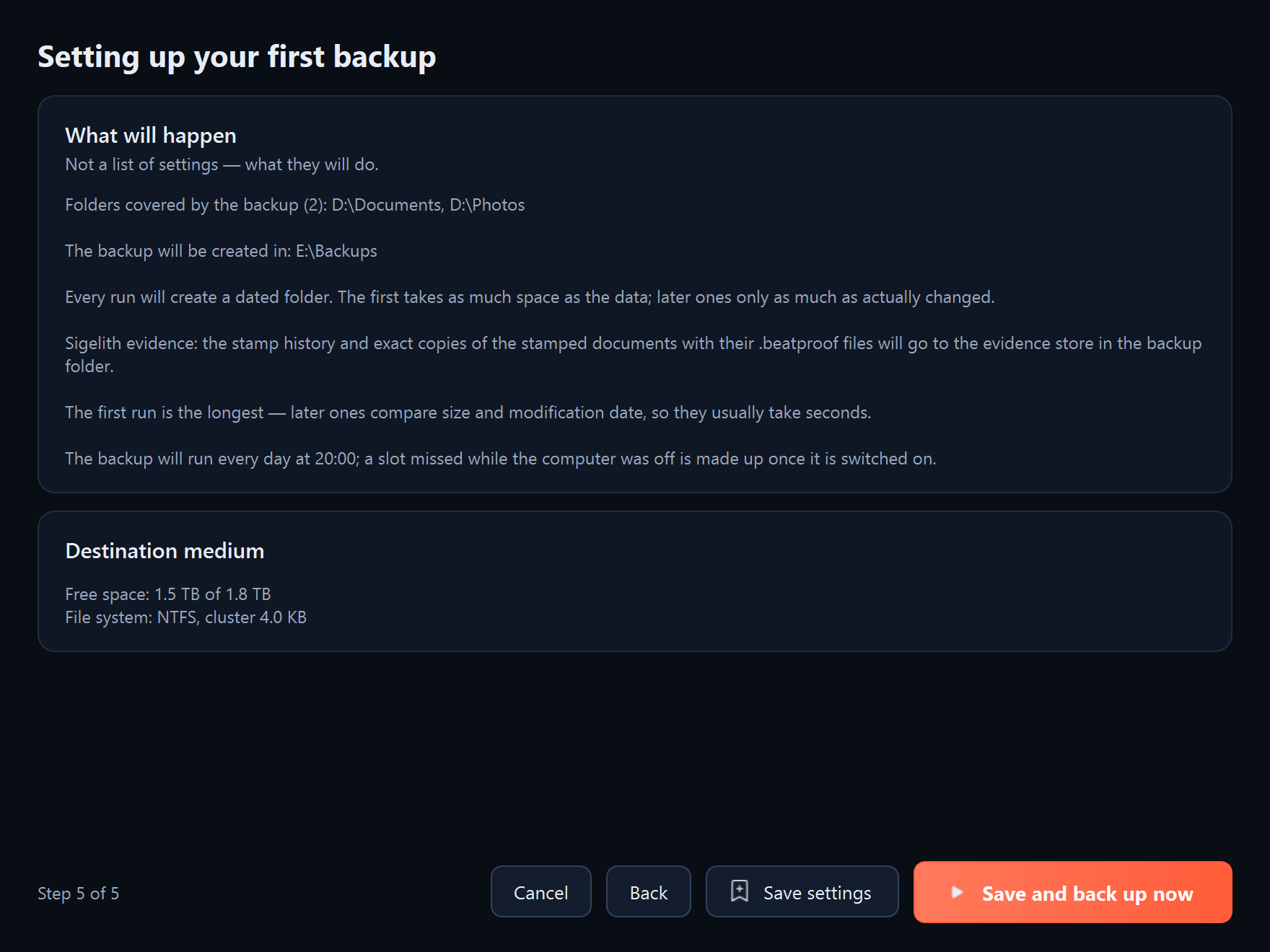
- “What will happen” (Step 5 of 5). Read the summary: folders, backup location, how the backup is written, the schedule and the state of the destination drive. Click “Save and back up now”. If you will back up later, click “Save settings”.
What you should see
The program starts the first backup and shows its progress. At the end a summary appears, “Done:”, with the number of files written, their size and how long the backup took. The “Templates” page has a new template.
What next
- The first backup takes the longest, because it copies everything. Later ones compare the size and modification date of the files and usually take seconds.
- Scheduled backups run while the program is running. After you close the window, the program stays by the clock (see “The program window and the icon by the clock”).
- Every now and then, check that the backup is intact (see “Checking that the backup is intact”).
If something goes wrong
- The “Next” button is inactive: in step 1 add at least one folder, and in step 2 choose where the backup goes.
- “The destination folder is inside the source”: the backup cannot live inside a folder you are backing up. Choose another folder.
- “This is the system drive”: a backup on the same drive as Windows will not survive that drive failing. If you can, choose another drive.
- “This medium does not support hard links”: the drive uses the exFAT or FAT32 file system, so every dated version will be a full copy and take up more space. It is best to format the backup drive with NTFS (formatting erases everything on the drive).
- “The two passwords do not match” or “The password should be at least 8 characters long”: correct the password in step 3.
- “This folder already holds a backup”: there is already a backup in the chosen location. The program will top it up instead of starting from scratch.