Creating a backup without the wizard
Why
The “Backup” page shows all the backup settings at once, including ones the wizard does not have: exclusions, how many versions to keep, write checks and timestamping. This is also where you change a backup set up earlier with the wizard.
Before you start
- Connect the drive the backup will live on. Ideally a different physical drive from the one you are protecting.
- Decide about encryption now: for an existing backup it cannot be turned on or off later (see “Encrypting a backup”).
- A backup saved earlier as a template can be moved into the form from the “Templates” page with the “Load into the form” button.
Step by step
- In the menu on the left, click “Backup”.
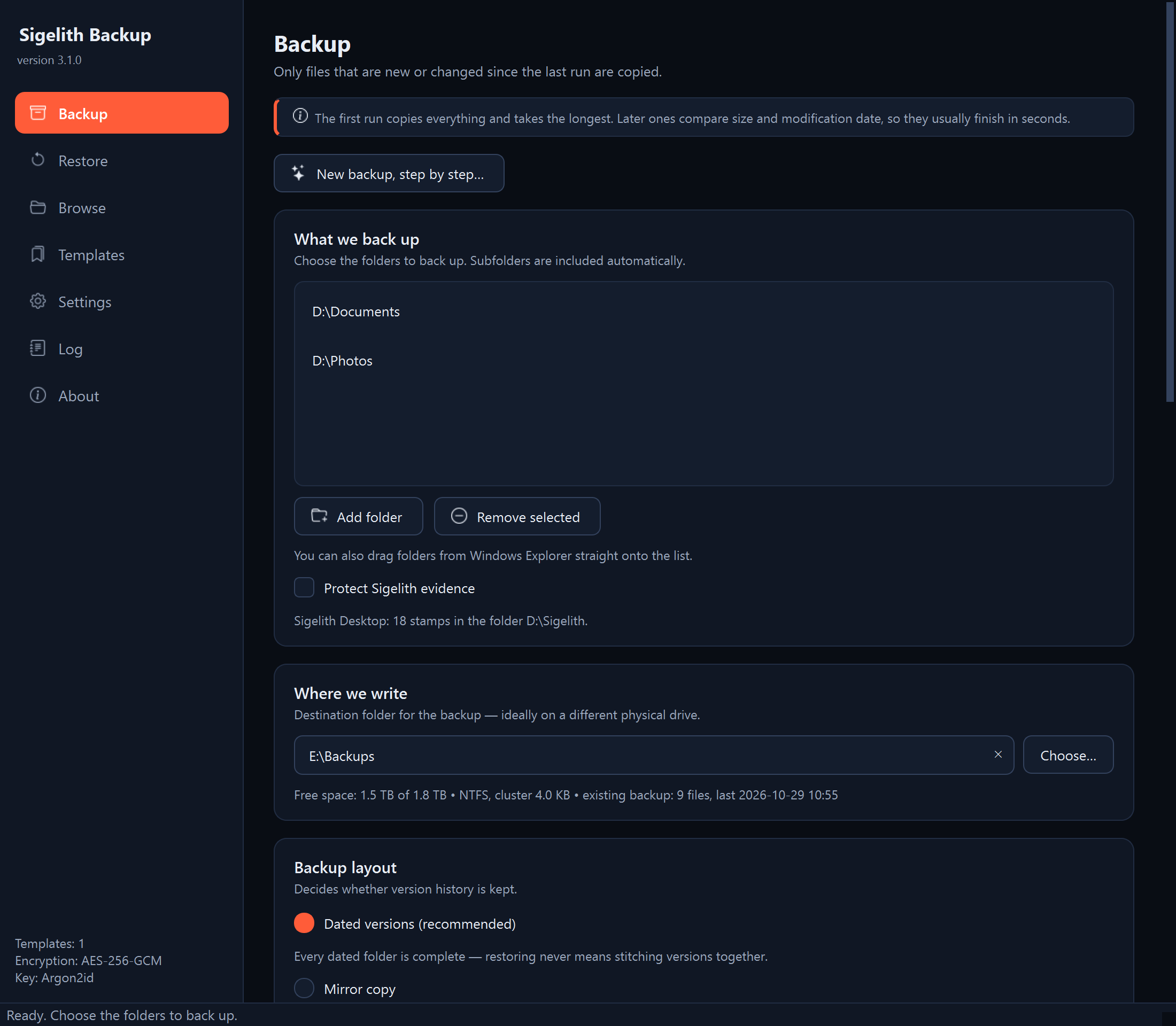
- “What we back up”. Click “Add folder” and choose a folder to back up. Add more folders the same way, or drag them from Windows Explorer straight onto the list. Subfolders are included automatically. “Remove selected” removes an entry from the list; it does not delete any files.
If you use Sigelith Desktop, tick “Protect Sigelith evidence” (see “Protecting Sigelith Desktop evidence”).
- “Where we write”. Click “Choose…” and choose the backup folder, for example E:\Backups. The folder does not have to exist: the program creates it. Below the field you see the free space on the drive, its file system and information about any backup already there.
- “Backup layout”. Choose one of the options:
- “Dated versions (recommended)”: every run creates a separate folder with the date and time. Unchanged files do not take up space a second time, and every version is complete.
- “Mirror copy”: one folder kept in step with the source, without earlier versions of files.
With dated versions, also set:
- “Keep:”: how many versions to keep (see “Choosing how many versions to keep”);
- “Write to:”: leave “New dated version”. Choosing an existing version (“Finish: …”) is for completing an interrupted backup (see “Finishing an interrupted backup”).
With a mirror copy you can tick “Remove from the backup files deleted at the source”. A file deleted at the source then also loses its only backup copy, so the program asks you to confirm.
- “Data protection”. The default settings suit most backups. The options are:
- “Encrypt the backup (AES-256-GCM)”: see “Encrypting a backup”;
- “Verify immediately after writing (slows the backup down)”: the program reads every file again right after writing it, and the backup takes up to twice as long. A check after reconnecting the drive tells you more (see “Checking that the backup is intact”);
- “Thorough mode”: the program computes a checksum for every file. The backup takes longer but catches a change after which the file still has the same size and date;
- “Store large files incrementally (256 MB and more)”: the next version of a large file, such as a virtual machine or a mailbox, stores only the changed parts;
- “Timestamp the version with Sigelith”: see “Timestamping backup versions with Sigelith”;
- “Top-up of changes made during the backup:”: once the backup is finished, the program adds to the same version the files that changed while it was being copied. Useful for a backup that runs for many hours;
- “Parallel operations:”: how many files the program copies at the same time. “automatic” is usually enough; on a slow hard disk, 2-4 can be faster.
- “Exclusions”. A list of files and folders the backup leaves out. The default list is usually enough (see “Leaving out unneeded files”).
- Click “Preview changes”. In the “Preview changes” box the program shows how many files are new, changed and unchanged, and how much data it will write. The preview writes nothing.
- Click “Run backup”.
- If the backup is to be repeated or to start by itself, click “Save as template” (see “Saving settings as a template”).
What you should see
Below the buttons you see the progress of the backup. At the end a window appears with the summary “Done:” (the number of files written, their size and how long the backup took) and with the location of the new version, for example E:\Backups\2026-10-28_@487. The date in the name is a UTC date, and the number after “@” is the time in BeatTime (a day has 1000 beats).
What next
- Later backups write only new and changed files, so they usually take seconds.
- The backup can start by itself on a schedule (see “Setting up automatic backups”).
- Every now and then, check the backup (see “Checking that the backup is intact”).
If something goes wrong
- “Run backup” is inactive: hover the mouse over the button. The tooltip says what is missing: a folder to back up, the backup folder or a correct password.
- “That folder is already on the list.”: that folder is already in the “What we back up” box.
- “Note: exFAT does not support hard links” (or FAT32): every dated version will take up as much space as a full backup. It is best to format the backup drive with NTFS (formatting erases everything on the drive).
- “Note: large cluster”: every small file takes up at least one cluster on this drive. With many small files, the backup will take up several times more than the data. Choose another drive, or format this one with a smaller allocation unit size (formatting erases everything on the drive).
- The “A backup to finish” window: the backup folder holds an unfinished backup of the same folders (see “Finishing an interrupted backup”).
- The “Suspiciously many changes” window: see “The backup stopped because many files look encrypted”.
- The “The operation could not be completed” window: the message in the window says what went wrong. The details are in the log (see “Where to find details: the program log”).