Setting up automatic backups
Why
A backup you have to remember sooner or later stops being made. A template with a schedule starts the backup by itself: daily at a chosen time, when the backup drive is connected, or live, a few minutes after a change.
Before you start
- You need a backup template. The wizard saves one by itself, and you save the settings from the “Backup” page with the “Save as template” button (see “Saving settings as a template”).
- An encrypted backup starts by itself only if the password is remembered in Windows Credential Manager (see “Encrypting a backup”).
- Scheduled backups run while the program is running, including when it is hidden by the clock. The program runs after you sign in to Windows; while the account is signed out, backups do not start.
Step by step
You set the schedule when saving a template, or later on the “Templates” page.
When saving a template
- On the “Backup” page, click “Save as template”.
- In the “Save template” window, enter a name, and in the “Schedule:” field choose when the backup should start. For a daily backup, set the time.
- Click “Save”.
On the “Templates” page
- In the menu on the left, click “Templates” and select the template in the “Saved templates” list.
- In the “Schedule:” field, choose when the backup should start. The change is saved immediately.
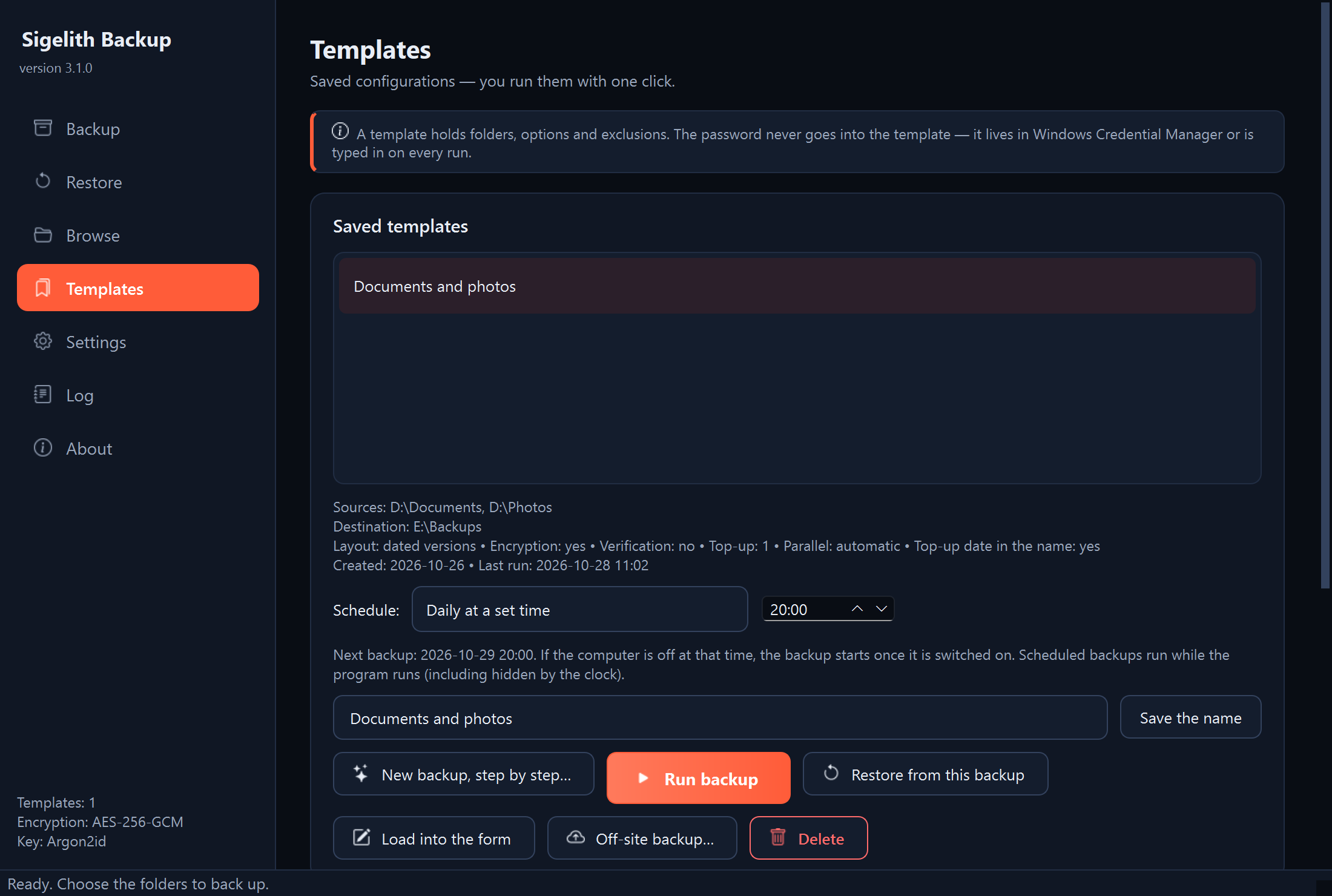
Schedule options
- “Manually”: the backup starts only when you start it.
- “Daily at a set time”: once a day at the chosen time, by this computer's clock. If the computer is off or the backup drive is disconnected at that time, the backup starts once, as soon as it can. A new time applies from the next due time: setting 20:00 at 21:00 means the first backup tomorrow at 20:00.
- “When the destination drive is connected”: for a USB drive you connect now and then. The backup starts when the drive is connected, at most once every 12 hours. A drive that is always connected gets a backup after the program starts.
- “Live”: changes reach the backup a few minutes after a file is saved (see “Turning on live backup”).
In the wizard (step 4) the same options have slightly different names, for example “When the backup drive is connected”.
What you should see
- Below the “Schedule:” field on the “Templates” page, the program says when the backup will start (for example “Next backup: …”) and whether the program starts at sign-in.
- With the first schedule, the program turns on “Start the program in the background when I sign in to Windows” in the settings by itself and shows the notification “Start at sign-in turned on”. This way due times are not missed after the computer restarts.
- After a scheduled backup, a Windows notification appears with the template name and the summary “Done:”. You also see the result on the “Templates” page: in the template description (“Last run”) and in the “Recent operations” list.
What next
- You can pause scheduled backups from the menu of the icon by the clock (“Pause scheduled backups”) or in the settings, in the “Scheduled backups and running in the background” box. Backups started manually still work.
- After you close the window, the program stays by the clock if at least one template has a schedule. You change this in the settings: “Keep running by the clock after the window is closed, when backups are scheduled”.
If something goes wrong
- The notification “The scheduled backup failed”: the notification text says what went wrong. The next attempt comes at the next due time. The details are in the log (see “Where to find details: the program log”).
- A notification that the backup did not start because the template is encrypted and the password is not remembered: remember the password (see “Encrypting a backup”, the “Password for scheduled backups” part).
- The notification “Scheduled backup paused”: suspiciously many files changed at the source (see “The backup stopped because many files look encrypted”).
- A notification that there has been no successful backup for several days: the program reminds you once a day when a template with a schedule has not made a successful backup for 7 days. Connect the backup drive, or open the program and check what is happening.
- Start at sign-in cannot be turned on in the program: it was turned off in Windows Settings (Apps, Startup). You can turn it on only there.
- The backup did not start at all: see “A scheduled backup did not start”.